Essential Tips for Maximizing SSD Performance
6 July 2026
Let's face it — switching from a traditional hard drive to a solid-state drive (SSD) is like trading in your rusty old bike for a sleek sports car. The speed boost is unreal. But just like any high-performance machine, an SSD needs a bit of tuning and care to run at its best. Whether you’re a hardcore gamer, a content creator, or just someone who appreciates a faster boot time, there are several things you can do to squeeze every last drop of performance out of your SSD.
In this article, we’ll cover everything you need to know to keep your SSD lightning-fast and in peak health. So, buckle up — your SSD is about to get a serious performance makeover.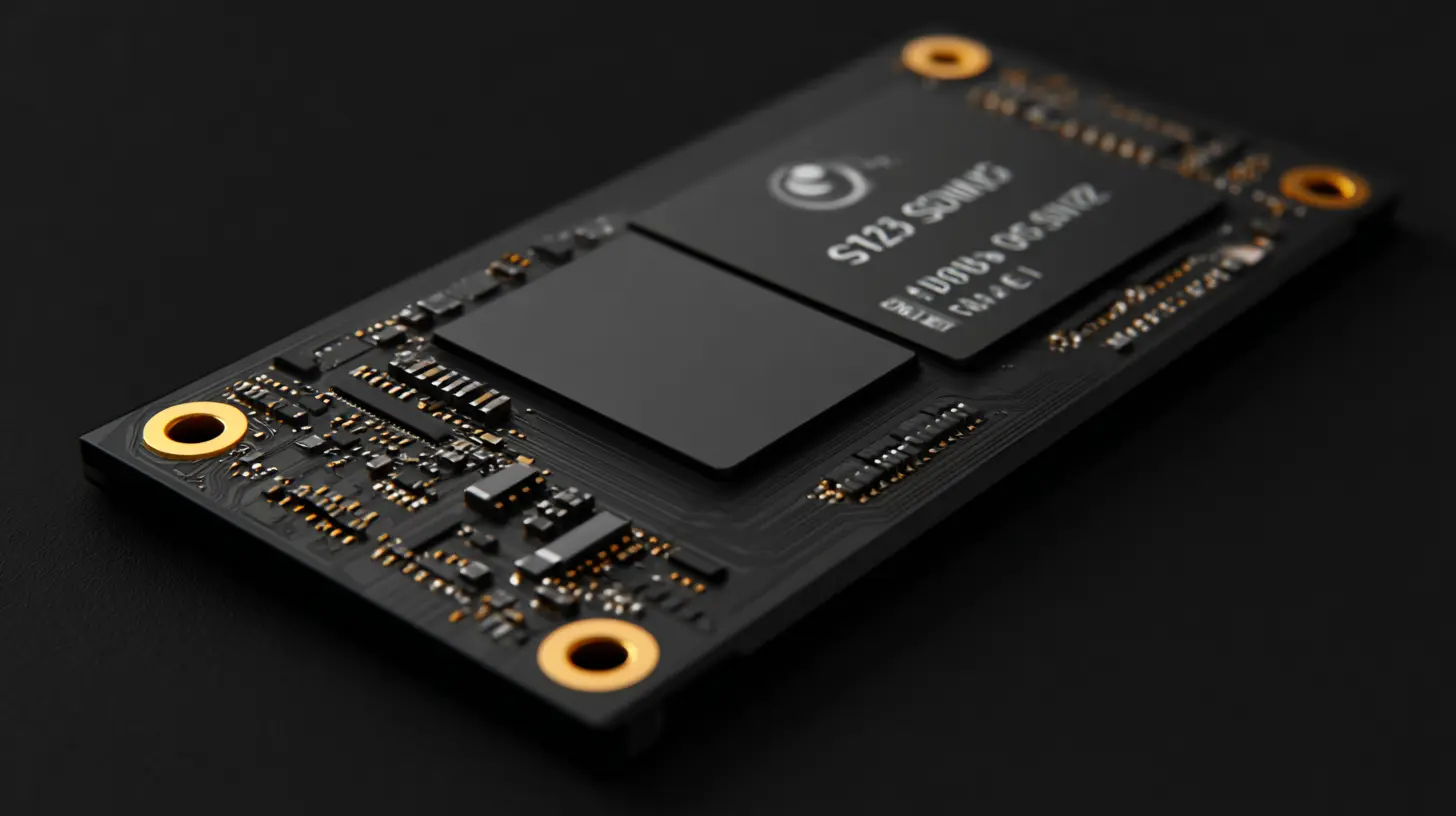
⚡️ Why SSDs Matter in 2024
Before diving into the tips, let’s get one thing straight: SSDs are no longer a luxury — they’re a must-have. With read/write speeds that blow traditional HDDs out of the water, SSDs drastically reduce system boot times, launch apps almost instantly, and speed up file transfers.But here’s the kicker — SSDs can slow down over time if not properly managed. Unlike HDDs, SSDs have limited write cycles. That means the more you write and erase data, the more worn out your SSD becomes. Don’t worry though. With a few smart habits and tweaks, you can extend its life and keep it blazing fast.
? Understand Your SSD: A Quick Primer
Before you fine-tune your SSD, it helps to know what you're working with.- NAND Flash Memory: SSDs store data in NAND flash, which doesn’t need electricity to retain data — that’s why SSDs are non-volatile.
- TRIM Command: This lets your operating system tell the SSD which blocks of data are no longer needed, so they can be wiped clean. Super important for speed and efficiency.
- Wear Leveling: This spreads out data writes evenly across the SSD to prevent any single section from wearing out too fast.
Okay, with that out of the way, let’s get to the good stuff — the actionable tips.
?️ 1. Enable TRIM for Automatic Garbage Collection
You wouldn’t want your closet full of unused junk, right? TRIM is like your SSD’s personal housekeeper. It clears out deleted files to free up blocks, making writing new data much faster.✅ How to Check and Enable TRIM
On Windows:bash
fsutil behavior query DisableDeleteNotify
- A response of `= 0` means TRIM is enabled (you’re good!).
- If it's disabled, turn it on:
bash
fsutil behavior set DisableDeleteNotify 0
On macOS, TRIM is automatically enabled for Apple SSDs. For third-party drives, you can enable it with this terminal command:
bash
sudo trimforce enable
? 2. Avoid Filling Your SSD to the Brim
Ever tried shoving too much into a suitcase? It's the same with SSDs — a nearly full drive has fewer free blocks, making data writing more chaotic and slower.? Rule of Thumb:
Keep at least 20-25% of the SSD free. This breathing room helps with efficient data management, especially for wear leveling and garbage collection.? 3. Don’t Defragment Your SSD
Old habits die hard, and defragmenting used to be a go-to fix for slow PCs. But for SSDs? It’s not just useless — it can reduce lifespan!Why? SSDs access data randomly, not sequentially like HDDs — so fragmentation doesn’t slow them down. And the extra write cycles from defragging? Completely unnecessary wear and tear.
Instead, use your OS’s built-in SSD optimization tool.
On Windows:
- Search for "Optimize Drives"
- Select your SSD and click "Optimize" — this sends a TRIM command instead of a defrag.
? 4. Disable Startup Programs & Background Apps
Your SSD’s read/write power is precious — don’t waste it on unnecessary background apps. Many programs love to sneak into your startup sequence, hogging system resources and increasing write load.✂️ How to Trim the Fat
- On Windows: Press `Ctrl + Shift + Esc` to open Task Manager → Startup tab → Disable the non-essentials.- On macOS: Go to System Preferences → Users & Groups → Login Items.
Cleaning up your startup list can seriously speed things up, both for your SSD and your sanity.
? 5. Update Your SSD’s Firmware
You update your phone, your apps, your OS — why not your SSD? Manufacturers often release firmware updates that improve performance, fix bugs, or enhance reliability.? How to Update:
- Visit your SSD manufacturer’s website.- Download their SSD management software (e.g., Samsung Magician, Crucial Storage Executive, etc.).
- Follow the steps to update the firmware — it only takes a few minutes.
Always backup your data first, just in case something goes sideways (better safe than sorry).
☁️ 6. Turn Off or Limit Page File and Hibernation (Windows)
The page file is a section of storage your system uses as "virtual RAM." While helpful if you're low on RAM, it constantly writes data to the SSD, which isn’t ideal.Hibernation does something similar — it writes the entire system state to your SSD. Again: lots of writing.
? How to Disable Hibernation:
Open Command Prompt as Admin:bash
powercfg -h off
To tweak or limit page file usage:
- Go to System Properties → Advanced → Performance Settings → Advanced → Virtual Memory.
A smarter move? Make sure you have enough physical RAM so your system doesn’t depend heavily on the page file in the first place.
? 7. Enable AHCI in BIOS/UEFI
Advanced Host Controller Interface (AHCI) allows faster data transfers and supports features like NCQ (Native Command Queuing), which boosts SSD performance.⚙️ Check & Enable AHCI:
- Check in BIOS or UEFI (usually accessed by pressing `Del`, `F2`, or `F10` at startup).- If you’re switching from IDE to AHCI mode, be careful — you may have to tweak registry settings in Windows first to avoid boot errors.
Always back up your data before messing with BIOS.
?️ 8. Use a Modern OS That Supports SSD Optimization
Older operating systems don’t fully support SSD features like TRIM or proper wear leveling. If you’re still rocking Windows 7 or an ancient version of macOS, it’s time for an upgrade.? Recommended OS:
- Windows 10 or 11- macOS 10.13 High Sierra and above
- Any modern Linux distro supports SSDs quite efficiently
Newer operating systems also come with better memory management, faster boot times, and built-in SSD optimizations. Win-win.
? 9. Turn Off Indexing
Indexing speeds up file searches, but it also generates a lot of write operations — and those add up over time.If you don’t use the search function all that often, killing indexing is a smart move.
? How to Disable:
On Windows:- Right-click your SSD drive → Properties
- Uncheck “Allow files on this drive to have contents indexed”
- Apply changes to all folders and subfolders
? 10. Set Up Overprovisioning
Overprovisioning is like giving your SSD some hidden elbow room. You allocate a small chunk of the drive that remains unused, allowing your SSD to manage data more efficiently and last longer.? How to Set It Up:
- Use SSD management tools from your manufacturer (Samsung Magician, for example, makes this super easy).- Reserve about 7-10% of the total SSD capacity for overprovisioning.
Your drive will thank you.
? Bonus Tips for Power Users
If you like taking things to the next level, here are a few advanced tweaks:- Disable Superfetch (on Windows): It's less useful with SSDs and can be disabled via services.msc.
- Move heavy write folders (like browser cache or temp folders) to another drive.
- Use high-quality SATA or NVMe cables to avoid bottlenecks.
- Monitor drive health using tools like CrystalDiskInfo or SMART tools.
? Common Mistakes to Avoid
- Cloning an old HDD directly without clean install — sometimes this carries over bad settings.- Running disk cleanup tools too often — they can cause unnecessary wear.
- Using SSDs for large surveillance or write-heavy logs — not ideal unless it's an enterprise-grade drive.
? When to Replace Your SSD
SSDs don’t last forever. If you notice frequent system crashes, slowdowns, or file errors — or if your SSD software reports high used write cycles — it might be time to upgrade.Always keep backups. Trust me — SSD failures rarely give warnings.
? Final Thoughts
Your SSD is an incredible piece of tech, but just like your car or your gaming rig, it thrives when given a little TLC. From enabling TRIM to freeing up space and avoiding common pitfalls, these small hacks can make a big difference in the life and speed of your drive.Remember, performance isn’t just about raw speed — it’s about sustainability and reliability too. So make these optimizations a part of your routine. Your SSD (and your sanity) will be better for it.
all images in this post were generated using AI tools
Category:
Tech TutorialsAuthor:

Vincent Hubbard
Discussion
rate this article
1 comments
Graham O'Brien
Great insights! Optimizing settings truly boosts SSD speed and longevity.
July 8, 2026 at 3:26 AM
Vincent Hubbard
Thanks! I'm glad you found the tips helpful. Optimizing really makes a difference.