How to Use Arduino for DIY Electronics Projects
25 December 2025
So, you've heard the buzz about Arduino and want to dive into the world of DIY electronics? Maybe you've already imagined your house turning into a smart lair, or your cat feeder becoming AI-powered (…okay, maybe semi-smart). Whatever your reasons, you're in for a fun, slightly nerdy, and very rewarding journey.
But here’s the kicker: you don’t need a Ph.D. in electrical engineering, or even a drawer full of resistors and capacitors, to get started with Arduino. All you really need is enthusiasm, a curious brain, and (okay fine) one or two USB cables.
Let’s break it all down. This guide is your trusty sidekick to understanding how to use Arduino for DIY electronics projects — without frying your brain (or your breadboard).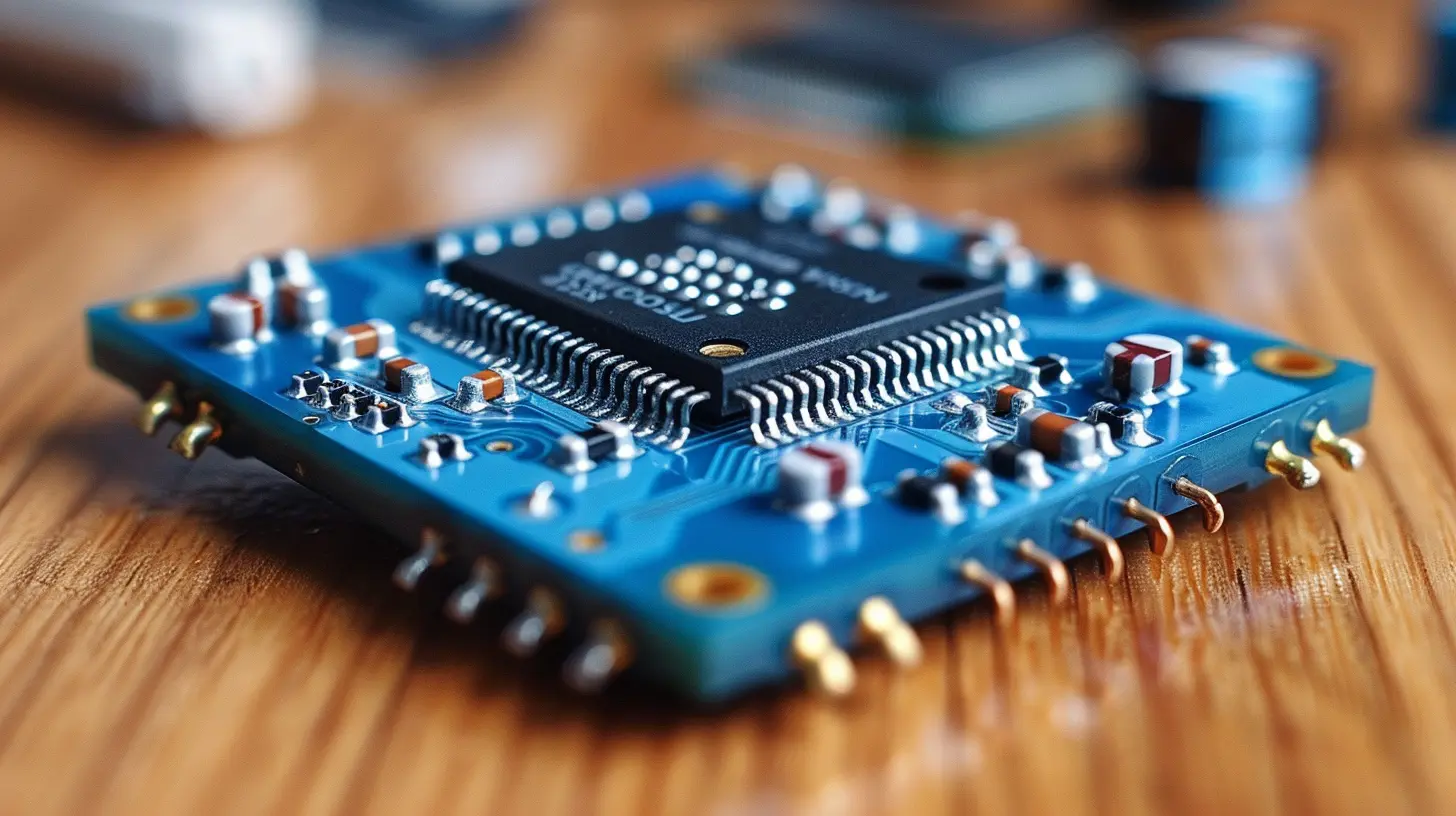
🧠 What's Arduino, Anyway?
Think of Arduino as the Swiss Army knife of hobby electronics. It’s an open-source microcontroller platform — a tiny computer that can interact with the world through sensors and actuators.In simpler terms: it’s the brains behind your project. You use it to control lights, motors, sensors, and pretty much anything electronic. It’s like giving your gadgets a mini brain that you can program to do your bidding.
Whether you're dreaming of a robot butler or a plant that tweets when it’s thirsty (totally a thing), Arduino is your go-to.
🧰 What You’ll Need to Get Started
Before you turn your apartment into a makeshift lab, let’s talk gear. Here’s what you’ll need to kick off your Arduino adventure:1. An Arduino Board
There are a ton of models, but the classic Arduino Uno is like the vanilla ice cream of microcontrollers—solid, dependable, and everyone loves it.2. USB Cable
Used for two things: powering the board and transferring code from your computer. Think of it as the neural link between you and your robot army-to-be.3. A Computer (with Internet, obviously)
You’ll need to download the Arduino IDE (Integrated Development Environment). It’s where you’ll write and upload your code.4. Some Starter Components
Grab a beginner kit if you can. It’ll usually include:- LEDs
- Resistors
- Push buttons
- Breadboard
- Jumper wires
- Sensors (like temperature, motion, etc.)
Having a kit is like getting a buffet plate before you decide on your favorite food.
🖥️ Setting Up the Arduino IDE
Here comes the slightly techy part—but don't sweat it, this is kid-glove level stuff.1. Go to Arduino’s official site
2. Download the IDE for your operating system (Windows, macOS, or Linux)
3. Install it and launch
Congratulations! You've just installed the command center of your DIY empire.
📝 Your First Sketch (Hello LED)
In Arduino world, a "sketch" = your code. Yeah, they tried to make coding sound artistic.Here’s a super simple one to blink an LED. Why blink an LED? Because it’s the “Hello World” of DIY electronics.
Step-by-Step:
1. Plug your Arduino into your computer via USB.2. Open the IDE and go to File > Examples > 01.Basics > Blink.
3. Click the upload button (arrow pointing to the right).
Boom! You should see the built-in LED on your board start blinking like it’s sending Morse code from the 80s.
Not blinking? Don’t panic. Check:
- You selected the correct board (Tools > Board > Arduino Uno)
- You picked the correct port (Tools > Port > COMX/tty.usbmodemXXX)
🤖 Understanding the Code (Without Crying)
Here’s a super-simplified breakdown of what the Blink sketch is doing:c
void setup() {
pinMode(LED_BUILTIN, OUTPUT);
}void loop() {
digitalWrite(LED_BUILTIN, HIGH); // turn on LED
delay(1000); // wait 1 second
digitalWrite(LED_BUILTIN, LOW); // turn off LED
delay(1000); // wait 1 second
}
setup() runs once when the board turns on. loop() keeps running forever.
See? Not so scary. It’s mostly "turn this pin on," "wait," "turn it off," "repeat."
🚀 Moving On to Real DIY Projects
Blinking LEDs are fun...for like five minutes. Let’s move on to projects that make your friends say, “Wait, YOU built that?”1. Automatic Plant Watering System
You’ll need:- Moisture sensor
- Water pump
- Relay module
- Some tubing (and a plant, of course)
The idea is simple: when your plant gets thirsty, Arduino knows it and waters the plant for you. Lazy gardening for the win.
2. Motion-Activated Night Light
Perfect for hallways or scaring away late-night snackers.Parts:
- PIR (motion) sensor
- LED strip or individual LEDs
When the sensor detects motion, it turns on the light. You can even set it up to turn off after a few seconds. Like a ninja… but helpful.
3. Weather Station
Measure temperature, humidity, and maybe even barometric pressure.You’ll need:
- DHT11 or DHT22 sensor
- LCD display
Display real-time indoor climate data and look wicked smart doing it.
🧠 Thoughts on Coding (It's Easier Than You Think)
You don’t have to be a full-fledged programmer to write Arduino code. Seriously, the language is a simplified version of C/C++ and most of the heavy lifting has been done for you in the form of libraries.Pro Tip: Google is the ultimate coding partner. Stuck? A thousand people probably had the same exact issue and solved it.
📶 Add Some Connectivity (Because Why Not?)
If you’re feeling bold (or just tired of physically interacting with stuff), add wireless capabilities:WiFi:
Use the ESP8266 or ESP32 modules to connect your project to the internet.Imagine:
- Sending sensor data to your phone
- Turning your lights on and off from another continent
Bluetooth:
HC-05 or HC-06 modules let you talk to your Arduino using your smartphone. Pretend you're Tony Stark, minus the billion-dollar suit.🛠️ Troubleshooting Tips (AKA, What Could Possibly Go Wrong?)
Let’s be real: things won’t always work on the first try. That’s part of the fun (and by fun, I mean screaming into a pillow).Here are common hiccups and how to fix them:
- Not uploading code? Check your USB connection and selected port.
- LED not turning on? Make sure it’s connected the right way (they’re polar—like tiny, picky magnets).
- Weird sensor readings? Double-check the wiring. One flipped wire is all it takes to mess things up.
Mistakes are badges of honor in the DIY world. Fail gloriously, and often.
🌟 Leveling Up: What’s Next?
Once you’ve nailed the basics, the sky’s the limit.- Add a real-time clock module to keep track of time
- Use servo motors to build robot arms
- Hook up a joystick to control stuff remotely
- Integrate voice commands using Google Assistant
Arduino is more than a development board—it’s a launchpad for your creations.
👨🔧 Final Thoughts
Using Arduino for DIY electronics projects isn’t some elite hacker-only club. It’s an open playground where everyone, from curious kids to full-grown adult nerds, can build stuff that blinks, beeps, and solves real problems.And hey, even if all you do is make a light blink in Morse code saying “Send Snacks,” that’s still a win.
So go ahead — grab an Arduino kit, start small, and before you know it, you'll have a desk full of buzzing, blinking devices that obey your every command. Just don’t forget to write down what wire goes where.
Happy tinkering!
all images in this post were generated using AI tools
Category:
Tech TutorialsAuthor:

Vincent Hubbard
Discussion
rate this article
2 comments
Phoenix Morrow
Great article! Arduino opens up a world of creativity for DIY projects. Can't wait to start building my first invention!
December 27, 2025 at 11:52 AM
Vincent Hubbard
Thank you! I'm excited to see what you create with Arduino. Happy building!
Uriel McDermott
Why settle for store-bought gadgets when you can flex your creativity? Dive into Arduino and let your imagination run wild. DIY isn’t just a project; it's a tech revolution waiting for your genius touch!
December 25, 2025 at 12:32 PM
Vincent Hubbard
Thank you for the encouragement! Embracing DIY with Arduino truly unlocks endless possibilities for innovation and creativity. Let’s inspire others to join the tech revolution!