Mastering the Use of External Hard Drives for Data Backup
14 July 2026
In today’s digital age, your data is more than just a collection of photos, videos, or work documents—it’s your digital life. Imagine losing years of memories, crucial work files, or that half-written novel you've been working on for months just because your computer crashed unexpectedly. Scary thought, right? That’s where mastering the use of external hard drives for data backup comes in.
Let’s dive deep (but keep it fun and understandable) into how to make external hard drives your best friend when it comes to data backup. Whether you're a tech beginner or a savvy digital hoarder, this guide is for you.
Why Data Backup Should Be Your Top Priority
We’re all guilty of delaying backups. It’s that thing we’ll do “later.” But let me ask—what would you do if your laptop died today? Would you panic or feel safe knowing your files are backed up?Data loss can be caused by anything from hardware failure, malware, accidental deletion, or even theft. Backing up isn’t just a good habit—it’s an insurance policy. And external hard drives? They’re the perfect toolkit for the job.
What Is an External Hard Drive, Anyway?
Let’s break it down. An external hard drive is a portable storage device you connect to your computer, usually via USB-C or USB 3.0. Unlike your internal hard drive, this one is detached—think of it as your digital locker that you can carry anywhere.From a few hundred gigabytes to several terabytes (yep, that’s 1,000+ GB), these drives come in all sizes. You can store everything: your cat videos, entire movie libraries, monthly reports, and backup images of your operating system.
Why Choose External Hard Drives Over Cloud Storage?
Cloud backups are awesome—don’t get me wrong. They offer ease and accessibility. But they aren’t perfect.Here’s why external drives still matter:
- Speed: Transfers via USB 3.0/Thunderbolt are often faster than uploading/downloading from the cloud.
- Privacy: No internet means no risk of online breaches or unauthorized access.
- Cost: Buy once, use for years. No monthly subscription fees.
- Portability: No Wi-Fi? No problem. Just plug in the drive and go.
In essence, they give you control. You know where your data is and who has access to it.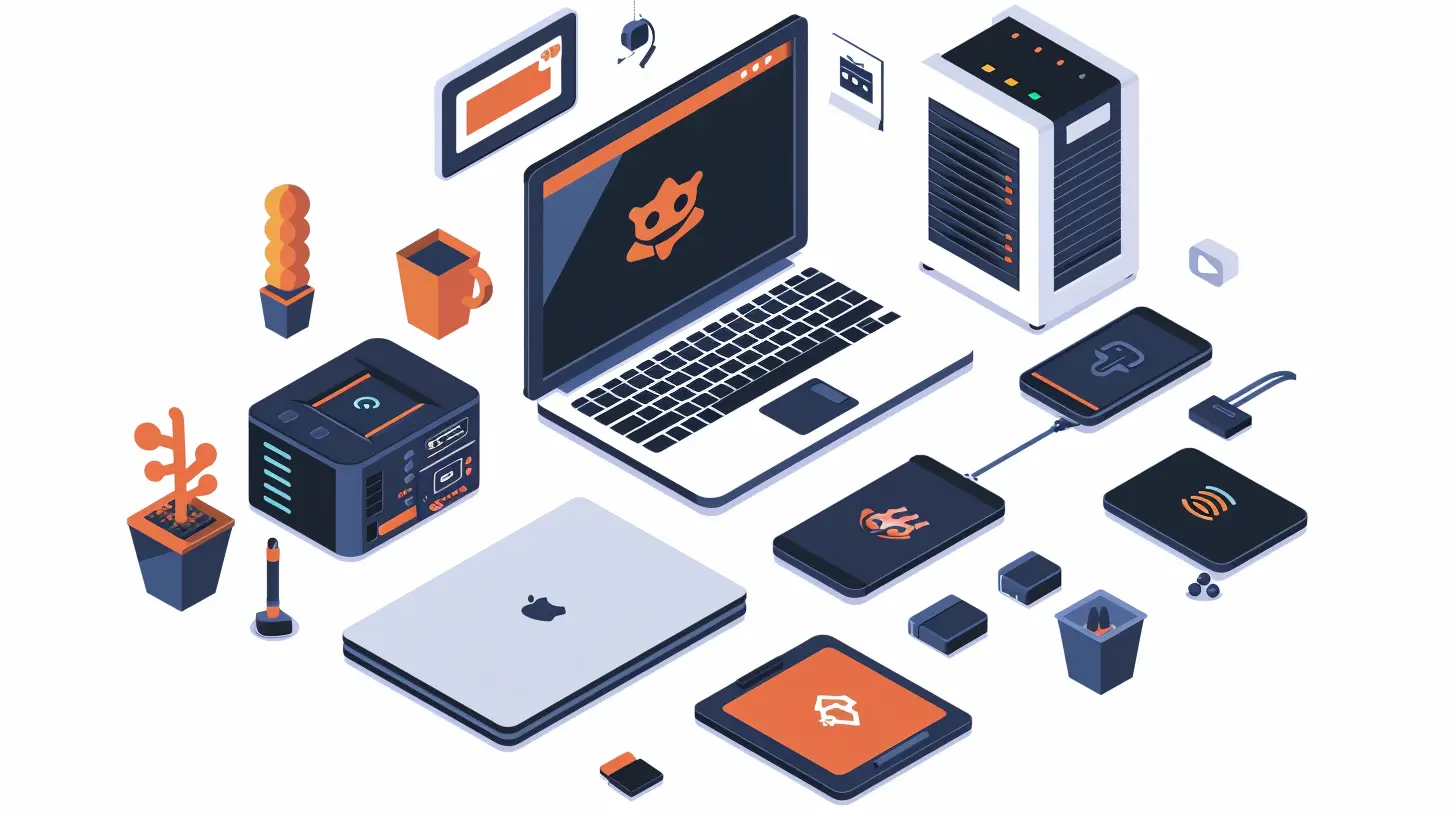
Picking the Right External Hard Drive for You
This is where many people get overwhelmed. SSD or HDD? 1TB or 4TB? Portable or desktop? Let’s make it easy.1. SSD vs HDD: What’s the Difference?
- HDD (Hard Disk Drive): Cheaper, more storage for the buck, but slower. Great for large backups you don’t need every day.- SSD (Solid State Drive): Faster, more durable (no moving parts), but pricier. Ideal for people constantly accessing or editing files.
? Tip: Use SSDs for on-the-go work and HDDs for monthly or full-system backups.
2. Storage Capacity: How Much is Enough?
Ask yourself:- Are you backing up photos and videos? (They’re space hogs.)
- Are you backing up just documents and spreadsheets? (Much smaller.)
Here’s a quick breakdown:
- 500GB: Basic use, not recommended if you’ve got lots of media.
- 1TB–2TB: Ideal for most users.
- 4TB+: Great for creative pros or for backing up multiple systems.
3. Connectivity Matters
Go for USB 3.0, USB-C, or Thunderbolt interfaces. The faster the connection, the quicker your backups.4. Portability vs Desktop Drives
- Portable drives are smaller, powered via USB, and perfect for travel.- Desktop drives need external power but offer larger capacities and better performance for long-term use.
Best Practices for Backing Up with External Hard Drives
Buying the drive is just step one. Let’s talk strategy, because just dragging and dropping files once a month isn’t enough.1. Use Backup Software (Automate It!)
One of the easiest ways to ensure regular backups is automation. Whether you're on Windows or macOS, built-in options like File History or Time Machine make the process a breeze.For more control, check out third-party tools like:
- Acronis True Image
- EaseUS Todo Backup
- Clonezilla (for tech-savvy users)
Set it, forget it, and sleep easy.
2. Adopt the 3-2-1 Rule
This is the golden standard in backup strategy:- 3 copies of your data (1 primary + 2 backups)
- 2 different storage types (external drive, cloud, etc.)
- 1 off-site copy (keep one out of your home/office)
Why so many? Imagine fire, theft, or flood. You want redundancy that survives Murphy’s Law.
3. Encrypt Your Backup Drive
Security matters. If your drive falls into the wrong hands, do you really want them accessing your tax returns, personal photos, or business files?Use built-in encryption tools like BitLocker (Windows) or FileVault (macOS). Or third-party options like VeraCrypt.
4. Label and Organize Your Backups
There’s nothing worse than plugging in your external drive and wondering, “Is this the one from May or June?”Use folders with clear names: `Backup_MacBook_June2024` or `Photos_Backup_TripToJapan`.
Trust me, future-you will thank present-you.
5. Regularly Test Your Backups
A backup that doesn’t work is worse than no backup at all—it gives a false sense of security.Every few months:
- Plug in the drive
- Open files
- Run a restore test
Make sure everything works as expected.
Avoiding Common Mistakes When Using External Hard Drives
Even experienced users make mistakes. Here are the common pitfalls to dodge:1. Using One Drive for Everything
It’s tempting to save space and money by dumping everything on one drive. But mixing active files with backups can lead to accidental deletions or corruption.Keep backup drives separate. Treat them sacred.
2. Never Ejecting Properly
Pulling the cable out without ejecting? Bad move. It can corrupt your drive, especially if it's doing a write operation. Always eject safely.3. Leaving Drives Plugged in Constantly
Constant exposure = more wear and tear. Also, if you get hit by malware or ransomware, your backup could be compromised too. Plug it in, back up, and unplug.4. Ignoring Firmware and Software Updates
External drives sometimes get firmware updates—especially SSDs. These updates can improve performance and security. Keep your backup tools and drive firmware up to date.How Long Do External Hard Drives Last?
Great question. Not forever, unfortunately.- HDDs last around 3–5 years.
- SSDs might stretch to 5–7 years (and more if you handle them carefully).
Frequent backups, proper storage, and safe ejection can extend life—but always prepare for eventual failure.
Pro tip: Replace your drive before it dies, not after.
Taking Your Backup Game to the Next Level
Want to get nerdy with it? Consider:- RAID arrays: Multiple drives configured together for redundancy.
- NAS (Network Attached Storage): Backup over your local network, accessible from anywhere.
- Versioned Backups: Store multiple versions of the same file in case you need to roll back changes.
These setups are ideal if you run a home office or need more sophisticated data backup strategies.
Final Thoughts: Make Backup a Habit, Not a Chore
Here’s the thing—backups aren’t glamorous. They won’t get you likes on social media or cheers from your coworkers. But when the worst happens (and it eventually will), you’ll be the calmest person in the room.Using external hard drives for data backup is one of the smartest, most cost-effective ways to protect your digital life. It’s a small commitment with a massive return.
So go ahead—grab that external drive, plug it in, and start taking control of your data. Your future self will owe you big time.
FAQs About Using External Hard Drives for Backup
Q: How often should I back up?
A: Weekly is ideal. Daily if you're working on crucial files. Automatic tools help make it effortless.Q: Can I use the same external hard drive for multiple devices?
A: Yes, but you may need to format it in a file system that's compatible across devices (like exFAT for Windows and macOS).Q: Is it safe to travel with my external hard drive?
A: Absolutely, especially SSDs since they have no moving parts. Just keep it in a padded case.Q: Can I back up my entire system?
A: Yup! Use disk imaging tools like Acronis, Macrium Reflect, or Time Machine to clone your entire OS.all images in this post were generated using AI tools
Category:
Tech TutorialsAuthor:

Vincent Hubbard