Setting Up a VPN Router for Whole-Home Privacy
19 May 2026
Let’s get one thing straight before we dive into the techy rabbit hole: the internet is a wild place. Think raccoon-in-your-trash kind of wild. From shady trackers snooping around your digital footprint to your ISP playing peeping Tom, it’s a jungle out there. That’s where VPNs come in clutch. But instead of installing a VPN on every device like you’re auditioning for a role in a geeky reboot of Home Alone, why not make life easier and smarter?
Enter stage left: VPN routers — the unsung heroes of digital privacy. By the end of this delightful tech tale, you’ll know exactly how to turn your regular router into a bodyguard for your entire household’s internet. Ready to be the champion of digital privacy for your castle? Let’s roll.
?️♀️ What Exactly Is a VPN Router?
Okay, before we get all hands-on like Bob the Builder with an encryption fetish, let’s answer the basics. A VPN router is just a regular Wi-Fi router that’s been taught some ninja tricks. Specifically, it has VPN software installed directly onto it. This means every device that connects to the internet through this router — smart TVs, phones, your grandma’s smart kettle — gets the VPN protection without lifting a finger (or clicking an app).You know how your coffee machine can brew for everyone with one button push? A VPN router is kinda like that but for internet privacy.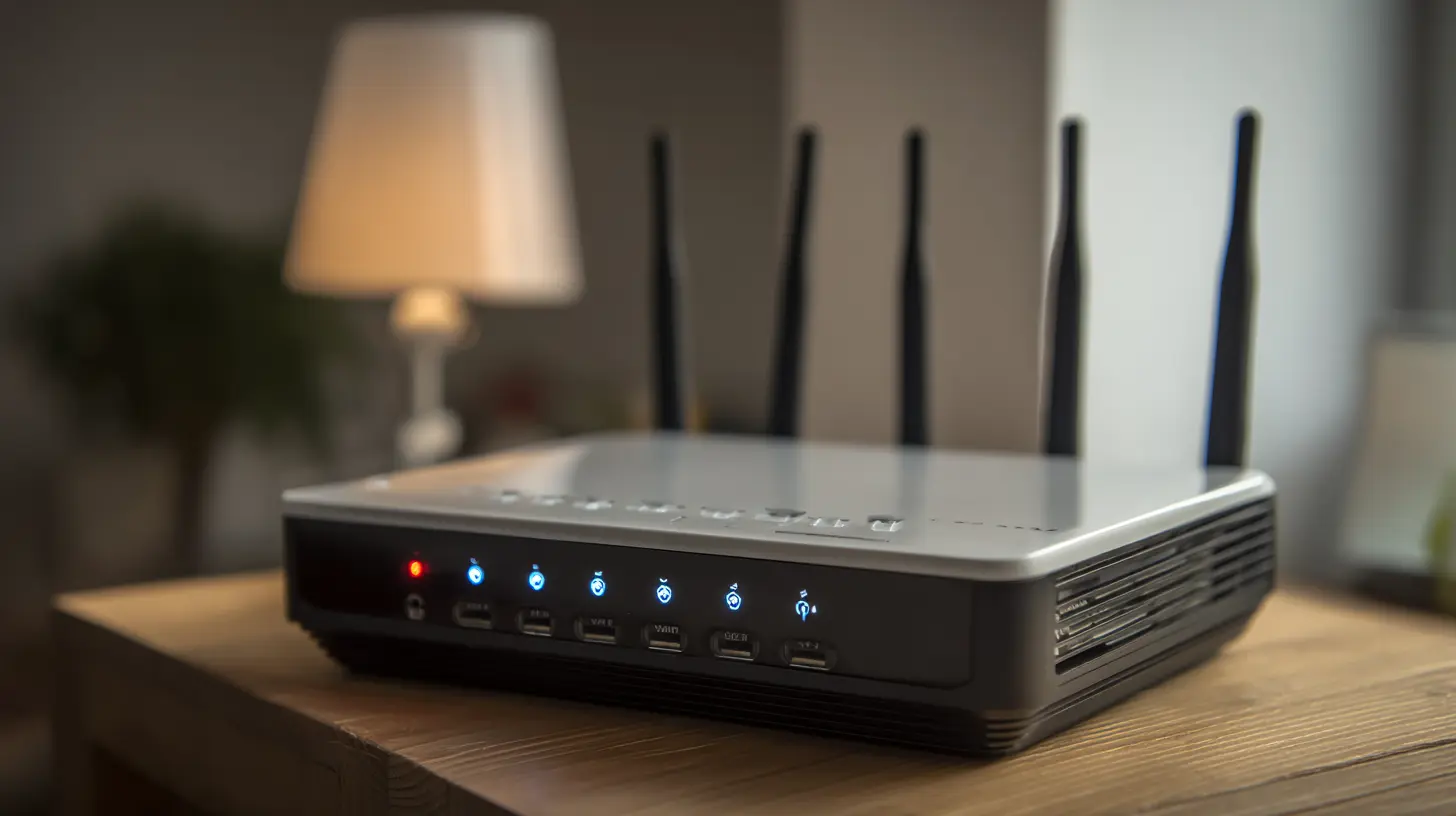
? Why Should You Bother With a VPN Router?
Fair question, dear reader. I mean, you might already be using a VPN app on your phone or laptop, so why go the extra mile?1. Protect Everything — Even the Smart Toaster
A VPN router covers all devices connected to your network, including those that can’t run VPN apps like your gaming console, smart fridge, or internet-connected fish tank (yes, that’s a thing now).2. Set It and Forget It
Once it’s set up, you don’t have to remember to turn on a VPN every time you binge-watch crime dramas or browse for suspiciously cheap flights.3. One VPN Subscription to Rule Them All
Use one VPN account for the whole household. No need to install the VPN app on every device or max out your device limit.4. Better Kids Control
Want your kids watching cartoons in Australia instead of locally? Set the VPN server to another country right from your router. Boom. Global parenting.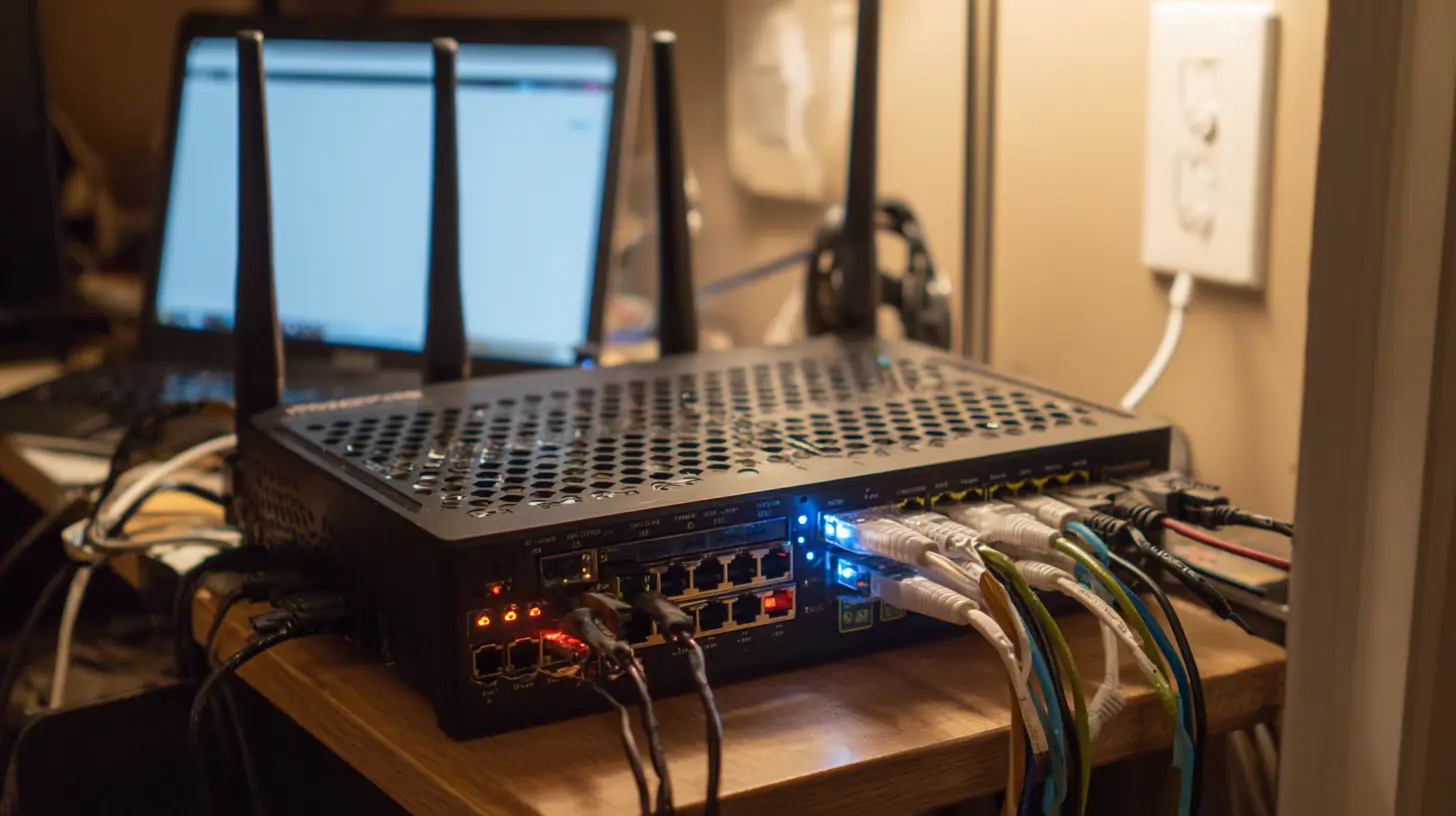
?️ What You’ll Need Before Setting Up a VPN Router
Think of this as the recipe list before we start baking the digital privacy pie.1. A Compatible Router
Not all routers support VPN connections out of the box. You’ll need one that either comes pre-flashed with VPN firmware (like some ASUS routers) or one you can manually flash with firmware like DD-WRT, Tomato, or OpenWRT.> Pro Tip: If router flashing sounds like something out of a hacker movie, don’t worry — we’ll keep it light and human-friendly.
2. A VPN Subscription
Choose a VPN provider that supports router-level installation. Some VPN providers even offer helpful setup wizard guides for various routers. Look for ones that don’t log your activity, have fast speeds, and solid customer service (because things happen).3. A Cup of Coffee and a Dose of Patience
Seriously. This isn’t rocket science, but it does require focus. And maybe a little bit of YouTube help if you get stuck.
? Choosing the Right VPN Router: Don’t Just Grab the Shiny One
Shopping for a VPN router can feel like choosing a cereal in a supermarket. Too many options, all promising to be “the best.” Here’s what you need to look for:✅ Processing Power
Running VPN encryption takes some CPU muscle. Look for dual-core or higher processors if possible, or you might end up with a turtle-slow internet.✅ Flash Memory and RAM
More memory = more ability to process VPN data smoothly. Aim for at least 128MB RAM and 32MB flash.✅ VPN Firmware Support
Check if your router supports firmware like DD-WRT or Tomato if you plan to DIY the VPN setup.? Step-by-Step Guide to Setting Up a VPN Router
Alright! Time to grab that wrench — metaphorically speaking — and get this VPN router show on the road.Step 1: Flash Your Router (If Needed)
If your router doesn’t come with built-in VPN support, you’ll need to install custom firmware. This is where most people tense up, but breathe: it’s very doable.- Check your router’s model number.
- Visit DD-WRT or Tomato’s website to see if it’s supported.
- Follow their specific flashing instructions. It’s crucial to follow them exactly — nobody wants to brick their $100 router.
> ⚠️ Warning: Flashing your router is kind of like playing Jenga with fire. Do your homework and double-check every step.
Step 2: Log into Your Router’s Control Panel
Usually, you can do this by opening a browser and typing in something like `192.168.1.1` or `192.168.0.1`. You’ll be greeted by your router’s admin page — the throne room of your home’s internet kingdom.Step 3: Enter VPN Configuration Details
You’ll need your VPN provider’s:- Server addresses
- Your account credentials
- Protocol settings (OpenVPN is the gold standard, but some routers use IPSec or L2TP)
Most VPN services give you a big ol’ configuration file you can import, especially if you’re using OpenVPN.
Step 4: Connect to the VPN
Once the settings are in place, hit connect and wait for the magic to happen. Check your external IP address (using “what’s my IP” websites) to make sure it’s changed — that’s proof you’re cloaked in VPN glory.Step 5: Test Your Devices
Connect a smartphone, laptop, smart TV, or even your dog’s Wi-Fi-capable treat dispenser to the router and test internet access. Everything should route through the VPN automatically.? Troubleshooting Like a VPN Pro
Look, I’m not gonna lie — sometimes things won’t work perfectly the first time. But don’t stress. Here are some quick fixes:❌ Can’t Connect to VPN?
- Double-check your username/password- Make sure the server address is correct
- Try a different VPN server location
? Slow Speeds?
- Switch to a closer VPN server- Use wired Ethernet instead of Wi-Fi
- Lower your VPN encryption level (if your router is struggling)
? Constant Disconnects?
- Update your router firmware- Enable “Keep Alive” settings to auto-reconnect
- Contact your VPN’s support — sometimes it’s them, not you.
? Bonus Tips for VPN Router Masters
Sure, you’ve got the basics now, but want to level up your VPN router game? Here are some Jedi tips:? Split Tunneling
Want some devices (like your Xbox) to bypass the VPN for better speeds while others stay protected? Some routers and VPNs support split tunneling — the best of both worlds.? Dual Routers Setup
Hardcore privacy nerds sometimes use two routers: one normal, one VPN. This way, you can switch networks depending on your needs. It’s like having a Clark Kent and Superman setup.? Use an App-Based Kill Switch
Some VPN routers support kill switches that disconnect your entire internet if the VPN drops. You’d be surprised how often this saves you from accidental exposure.? Benefits You’ll Actually Feel IRL
Still wondering if setting up a VPN router is worth the hassle? Here’s what you’ll actually notice:- No more ads stalking you after you Googled “pimple cream in secret.”
- Streaming geo-blocked content like BBC iPlayer, Hulu, or Netflix libraries from other countries? No problem.
- Avoiding bandwidth throttling from your ISP. (Yeah, they do that. Sneaky buggers.)
- Feeling like a tech wizard every time your friends ask, “Wait, your whole house runs through a VPN?!”
Be honest — you’ll probably start wearing a robe and calling your router your “Privacy Fortress.”
? Final Thoughts: Privacy Shouldn’t Be a Pain
There you have it — a whole-house privacy solution that doesn’t require a PhD in Computer Science or a VPN app on every gadget. A VPN router is like putting your digital household inside an invisibility cloak, Harry Potter style.Is it effort? Sure.
Is it worth it? Absolutely.
Is it geeky? Maybe.
Is it awesome? 1000%.
Now go forth, enable that VPN router, and reclaim the privacy that modern life tries to strip away.
all images in this post were generated using AI tools
Category:
Tech TutorialsAuthor:

Vincent Hubbard
Discussion
rate this article
2 comments
Margaret McCarty
Essential for comprehensive security.
June 12, 2026 at 3:51 AM
Vincent Hubbard
I appreciate your insight! A VPN router really does enhance overall security for the home.
Karen Carr
Setting up a VPN router is a game changer for your home network. It not only secures your online activities but also empowers every device connected to your Wi-Fi. Take control of your privacy today!
May 26, 2026 at 5:01 AM
Vincent Hubbard
Thanks for the insight! A VPN router really does enhance both security and privacy for all devices. Glad to hear you're on board with it!