The Ultimate Guide to Upgrading Your PC Hardware
12 April 2026
Upgrading your PC hardware can breathe new life into your system, boost performance, and even extend its lifespan. Whether you're a gamer chasing higher frame rates, a content creator looking for smoother workflows, or just someone tired of slow boot times, the right upgrades can make a world of difference.
But where do you start? What components should you prioritize? And how can you ensure compatibility? Don't worry—I’ve got you covered. In this guide, we’ll break down everything you need to know about upgrading your PC hardware, step by step.
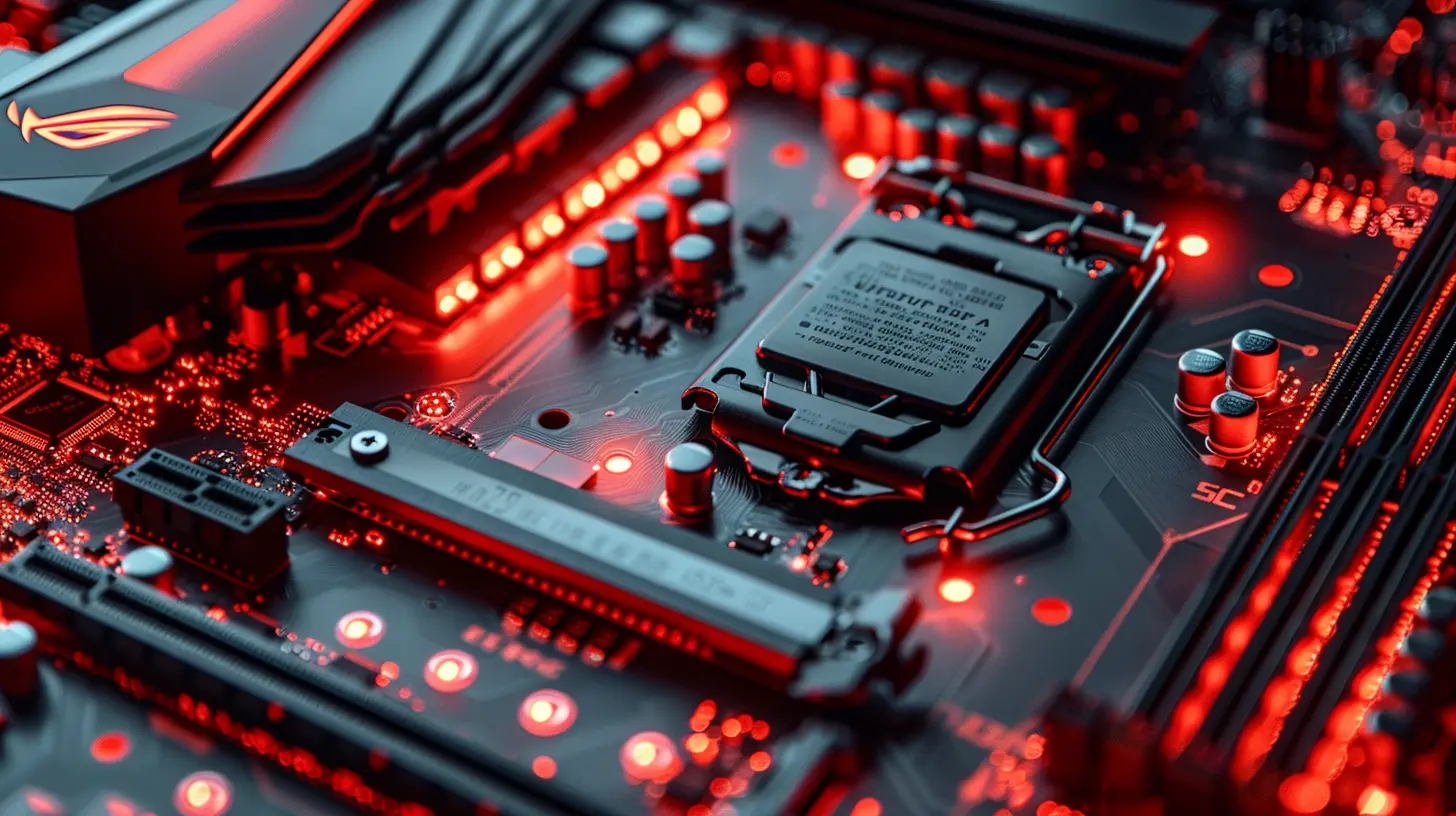
Why Upgrade Your PC Hardware?
Before we jump into the nitty-gritty, let’s address the obvious question—why should you even bother upgrading?- Boost Performance – Whether it's faster load times, improved graphics, or smoother multitasking, an upgrade can significantly enhance performance.
- Extend Lifespan – Instead of buying a whole new PC, upgrading key components can keep your system relevant for years.
- Support New Software – Modern applications demand more power. Staying up to date ensures compatibility with the latest software and games.
- Better Gaming Experience – Higher FPS, better textures, and faster load times make upgrading essential for gamers.
Now that we're clear on why upgrading is worth it, let's dive into the key components to consider.
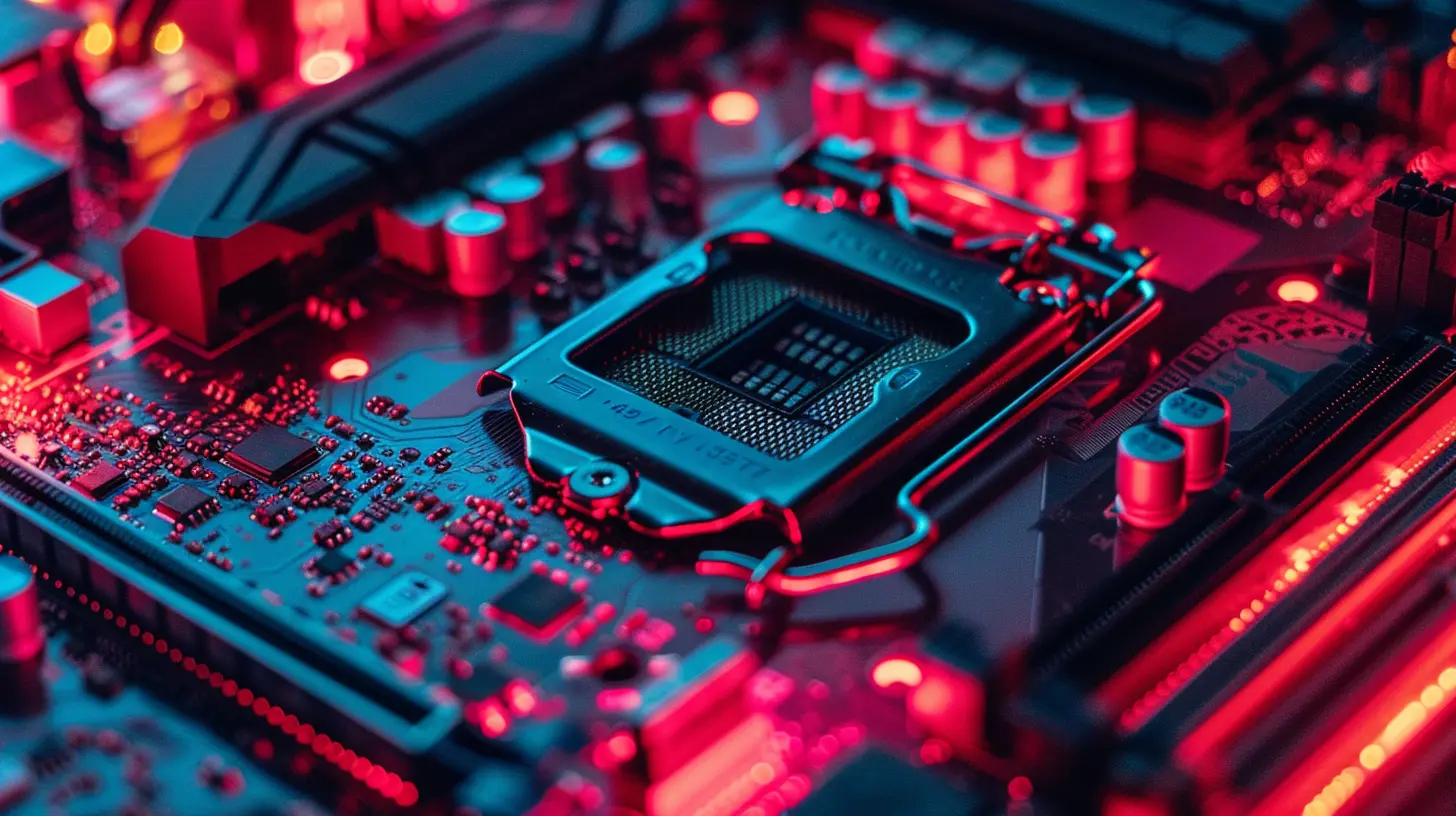
Choosing the Right Hardware Components to Upgrade
Upgrading blindly can be an expensive mistake. Instead, focus on the components that will give you the most noticeable improvement based on your usage.1. Processor (CPU) – The Brain of Your PC
The processor is the heart of your system, influencing everything from gaming performance to multitasking capabilities.When to Upgrade:
- If your PC feels slow, even with basic tasks.- If your CPU is bottlenecking your GPU in gaming.
- If your current CPU doesn’t support the latest applications.
Key Considerations:
- Socket Compatibility – Ensure your new CPU matches your motherboard’s socket (e.g., Intel LGA1700 or AMD AM5).- Cores & Threads – More cores/threads improve multitasking. Gamers usually need at least 6-8 cores, while content creators may need 12+ cores.
- Clock Speed vs. Core Count – Higher clock speeds improve single-threaded tasks like gaming, while more cores help with multi-threaded applications like video editing.
2. Graphics Card (GPU) – The Visual Powerhouse
If you love gaming or do video editing, upgrading your GPU can provide the biggest performance boost.When to Upgrade:
- If you're getting low frame rates in modern games.- If your GPU struggles with video editing, rendering, or AI work.
- If your GPU lacks support for the latest software features like Ray Tracing or DLSS.
Key Considerations:
- VRAM – For gaming at 1440p or 4K, aim for at least 8GB of VRAM.- Power Supply (PSU) Requirements – Ensure your PSU can handle the new GPU’s power needs.
- PCIe Compatibility – Modern GPUs use PCIe 4.0 or 5.0, but they are backward compatible with PCIe 3.0 slots.
3. Memory (RAM) – The Speedbooster
RAM affects how smoothly your PC handles multitasking, gaming, and heavy applications.When to Upgrade:
- If your system lags when multitasking.- If your RAM is constantly maxed out while gaming or using creative software.
- If you’re running an older DDR3 setup while modern systems use DDR4 or DDR5.
Key Considerations:
- Capacity – 16GB is the sweet spot for gaming, while 32GB+ is ideal for content creators.- Speed (MHz) – Faster RAM improves responsiveness. Look for at least 3200MHz for DDR4 and 5200MHz+ for DDR5.
- Dual-Channel vs. Single-Channel – Always go for dual-channel memory (two sticks instead of one) for better performance.
4. Storage – SSDs vs. HDDs
Upgrading your storage can drastically improve boot times, app launches, and load speeds.When to Upgrade:
- If your PC takes forever to start.- If games and programs load sluggishly.
- If you're running out of storage space.
Key Considerations:
- SSD vs. HDD – SSDs are significantly faster than HDDs. If you're still using an HDD for your OS, switching to an SSD is a game-changer.- NVMe vs. SATA SSDs – NVMe SSDs (e.g., PCIe 4.0) are way faster than traditional SATA SSDs. If your motherboard supports NVMe, go for it.
- Capacity – A 1TB SSD is ideal for most users, but if you store large files, consider 2TB or more.
5. Power Supply (PSU) – The Unsung Hero
Your PSU delivers power to all components, and an inadequate PSU can cause instability or even damage your hardware.When to Upgrade:
- If you’re adding a high-power GPU or CPU.- If your current PSU is over five years old (aging power supplies can become less efficient).
- If you experience random crashes or shutdowns under load.
Key Considerations:
- Wattage – Use a PSU wattage calculator to ensure you have enough power. A modern gaming rig typically needs 650W-850W.- Efficiency Rating – Look for 80 PLUS Bronze, Gold, or Platinum ratings for better efficiency and longevity.
- Modular vs. Non-Modular – Modular PSUs allow better cable management, improving airflow and aesthetics.
6. Cooling Solutions – Keeping It Cool
A well-cooled PC runs better and lasts longer.When to Upgrade:
- If your CPU or GPU temperatures are consistently high.- If your PC sounds like a jet engine under load.
Key Considerations:
- Air vs. Liquid Cooling – Air coolers are effective for most users, but liquid cooling is ideal for high-end gaming builds and overclockers.- Case Airflow – Upgrading case fans or investing in better airflow solutions can prevent overheating.
- Thermal Paste – Reapplying quality thermal paste can improve CPU cooling.
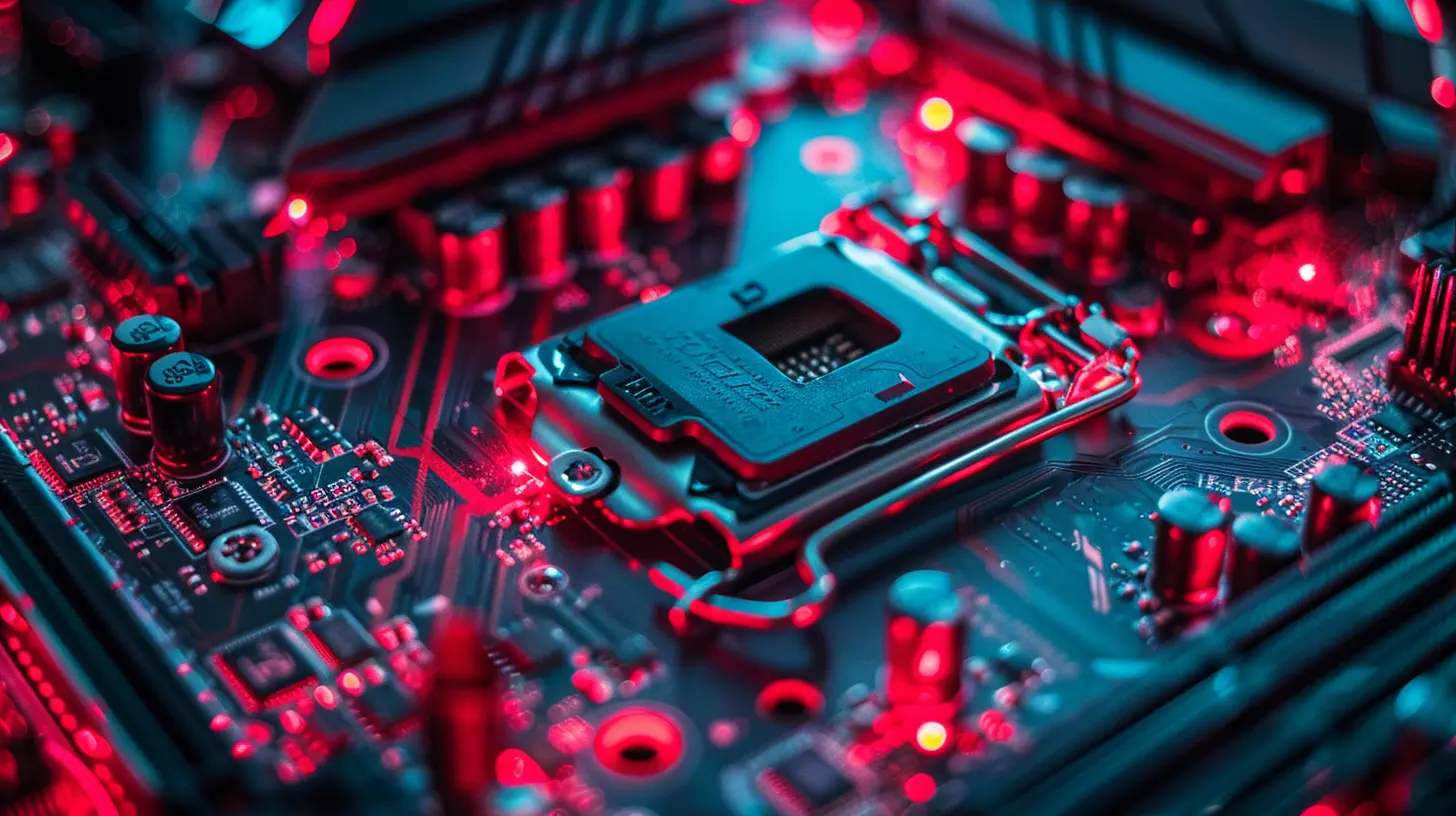
Step-by-Step Guide to Upgrading Your PC
Now that we know what to upgrade, here’s a simple guide to making the upgrade process smooth and hassle-free.Step 1: Check Compatibility
Before buying anything, ensure your new components are compatible with your existing hardware.Step 2: Back Up Your Data
Upgrading can sometimes require reinstalling the OS. Back up important files to avoid data loss.Step 3: Gather Your Tools
You’ll need a Phillips screwdriver, thermal paste (for CPU upgrades), and an anti-static wrist strap to prevent damage.Step 4: Install the New Hardware
Follow manufacturer guides or video tutorials for proper installation. Be gentle and double-check connections.Step 5: Update Drivers & BIOS
After installation, update your drivers (GPU, chipset, etc.) and BIOS if necessary to ensure stability.Step 6: Test Performance
Run benchmarks and monitor temperatures to ensure everything is working optimally.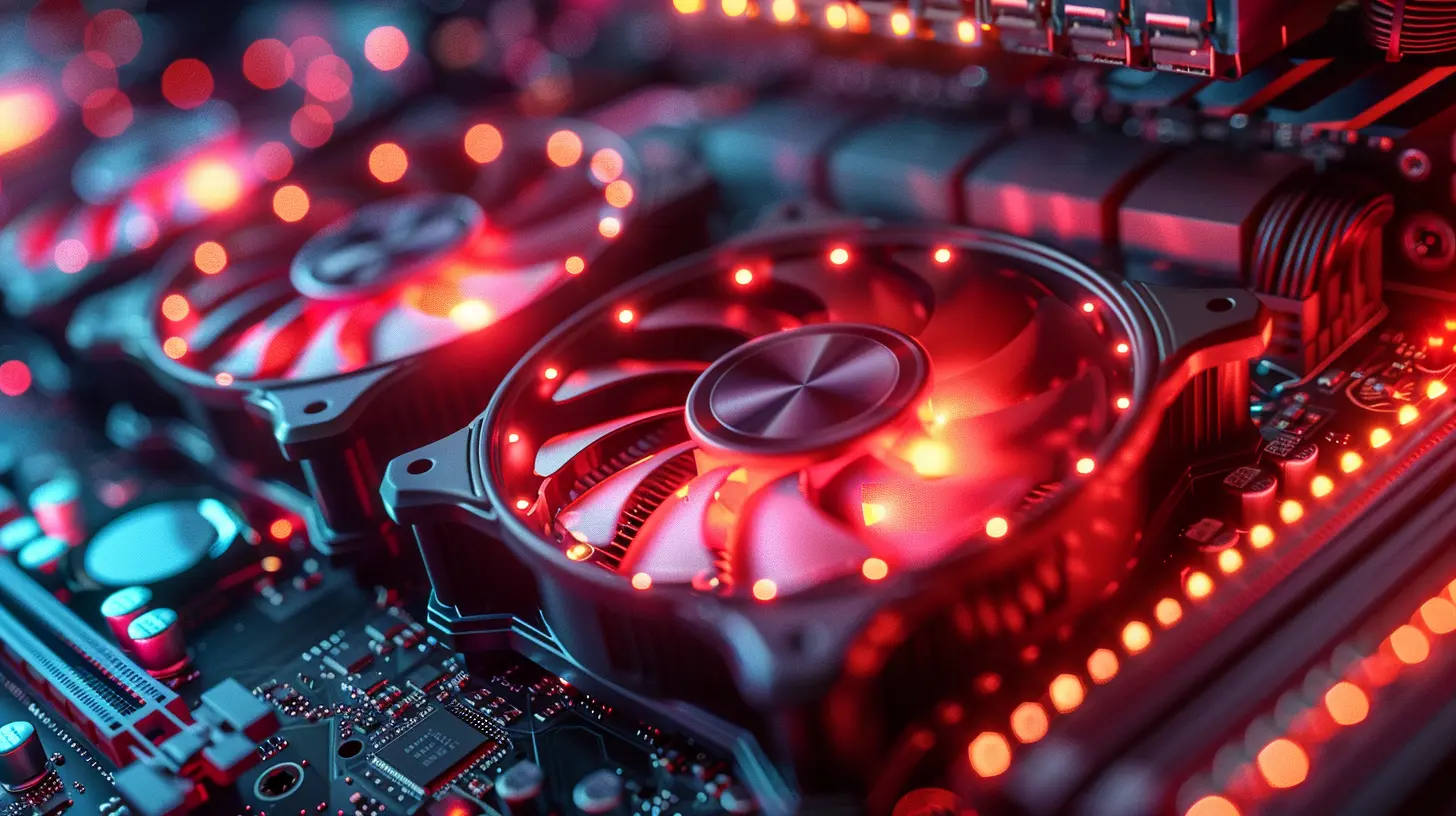
Final Thoughts
Upgrading your PC hardware is one of the best ways to boost performance without buying a brand-new machine. Whether it's a snappier SSD, a powerful GPU, or a faster CPU, each upgrade adds value to your experience.So, what’s your next upgrade going to be? Drop a comment and let’s discuss the best options for your setup!
all images in this post were generated using AI tools
Category:
Tech TutorialsAuthor:

Vincent Hubbard
Discussion
rate this article
2 comments
Nico Kim
Ah, yes! Because nothing says "I love spending my weekends" quite like deciphering cryptic tech jargon and wrestling with tiny screws. Happy upgrading, brave souls!
April 14, 2026 at 4:48 AM
Vincent Hubbard
Thanks for the humor! Upgrading can be a challenge, but the rewards are worth it. Happy building!
Lys Rios
Great insights on PC upgrades! This guide simplifies the process and helps ensure optimal hardware performance. Highly recommended!
April 13, 2026 at 3:41 AM
Vincent Hubbard
Thank you! I'm glad you found the guide helpful. Happy upgrading!