How to Build Your Own Gaming Console with Raspberry Pi
4 June 2026
If you're a gamer with a love for retro classics—or just someone who enjoys rolling up their sleeves and building something cool—then crafting your own gaming console with a Raspberry Pi is a dream project. And the best part? It’s not as complex or expensive as you might think.
In this guide, I’ll walk you through the entire process in a super simple, compassionate way—no coding degree required, no tech snobbery here. Whether you're brand new to the Raspberry Pi or you've dabbled before, you'll find this guide easy to follow and actually kinda fun. Let’s hit start on your DIY gaming adventure.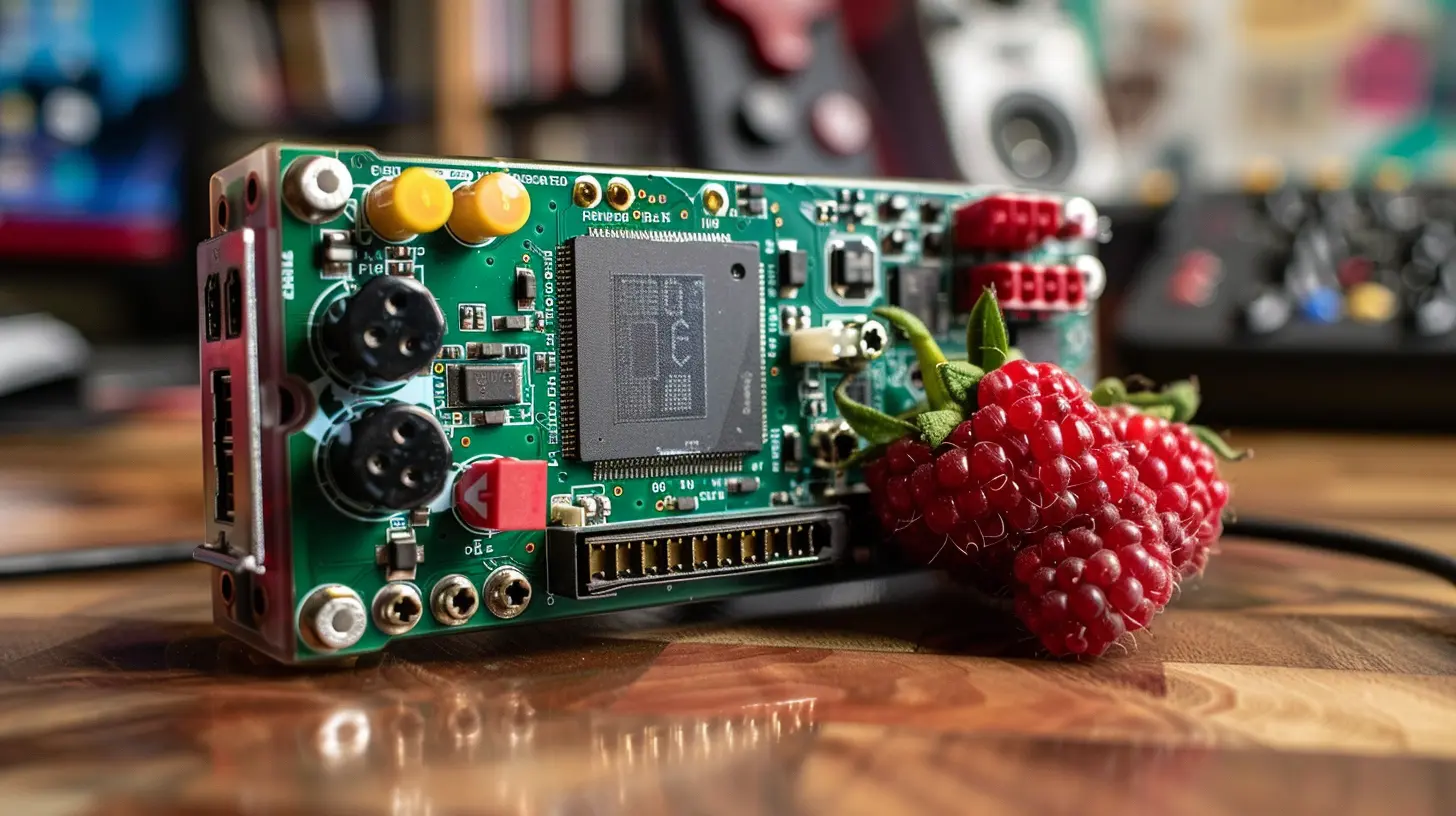
? Why Build a Gaming Console with Raspberry Pi?
First off, you might be wondering: why go through all the trouble when you can just buy a console? Fair question. But here's the deal—building your own console is about more than just saving money.It's about nostalgia. It's about creativity. And honestly? It’s just plain rewarding.
- Cost-effective – You can build a working console under $100.
- Customizable – Want to play NES, SNES, Sega, or even PlayStation 1? You got it.
- Educational – You’ll learn about hardware, software, and maybe even a pinch of programming.
- Portable – Build it into a case and take it anywhere.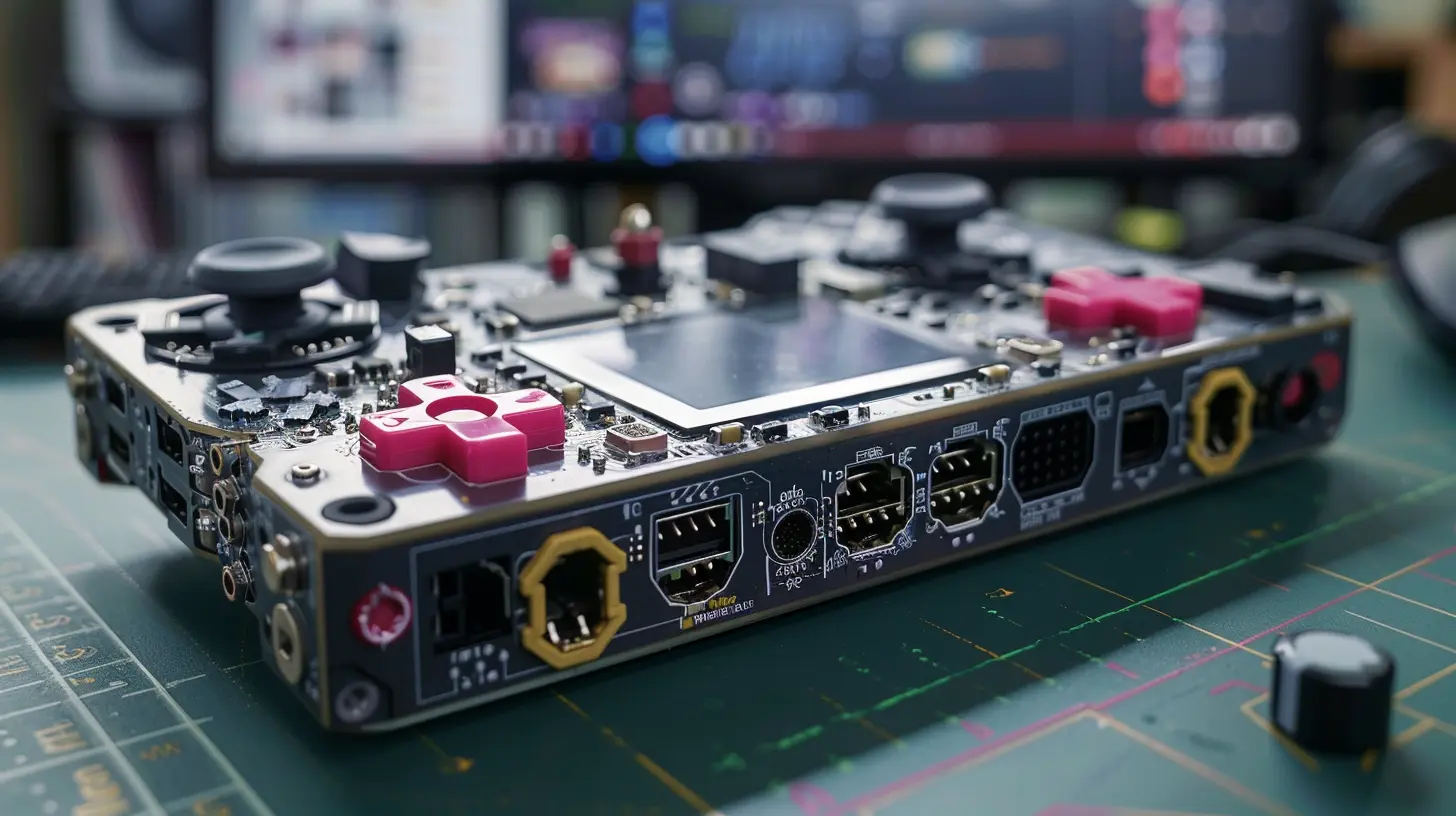
? What You’ll Need to Get Started
Okay, let’s break down the components. Think of this as your gaming console starter kit. A basic setup includes:? Hardware
- Raspberry Pi 4 (or 3B+) – Go with at least 2GB RAM for better performance.- MicroSD Card (32GB or higher) – This will hold your games and operating system.
- Power Supply (5V 3A USB-C) – Make sure it’s compatible with your Pi.
- HDMI Cable – To connect your console to a screen.
- USB Game Controller(s) – You can find retro-style ones online.
- Heat sinks or fan – Keeps your Pi cool during long play sessions.
- Case (Optional but recommended) – Protects your Pi and makes it look like a real console.
? Optional Extras
- Keyboard & Mouse – Useful during the setup phase.- USB Drive – To transfer games later.
- Wi-Fi or Ethernet – For downloading software and updates.
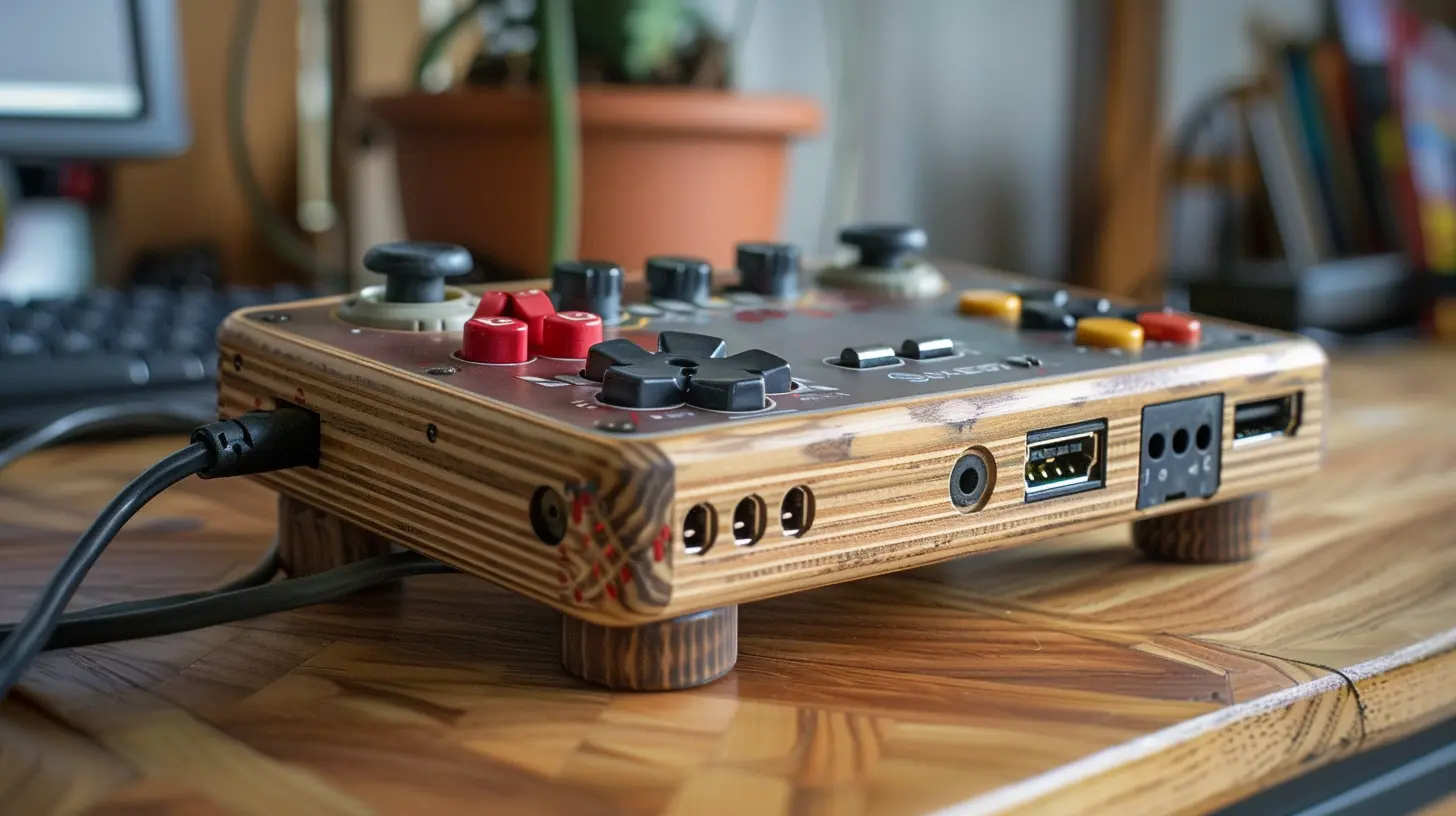
?️ Step 1: Flash the OS (RetroPie) onto Your SD Card
The heart of your gaming console is the operating system—and for most folks, RetroPie is the go-to option.What is RetroPie?
Imagine RetroPie as the brain of your homemade console. It’s a mashup of EmulationStation (for the interface), RetroArch (a suite of game emulators), and Raspberry Pi OS, working together to give you a smooth retro gaming experience.Here’s How to Install It:
1. Download RetroPie from retropie.org.uk2. Use balenaEtcher (free software) to flash the image to your microSD card.
3. Insert the microSD into your Raspberry Pi.
Tada! That’s your virtual cartridge ready.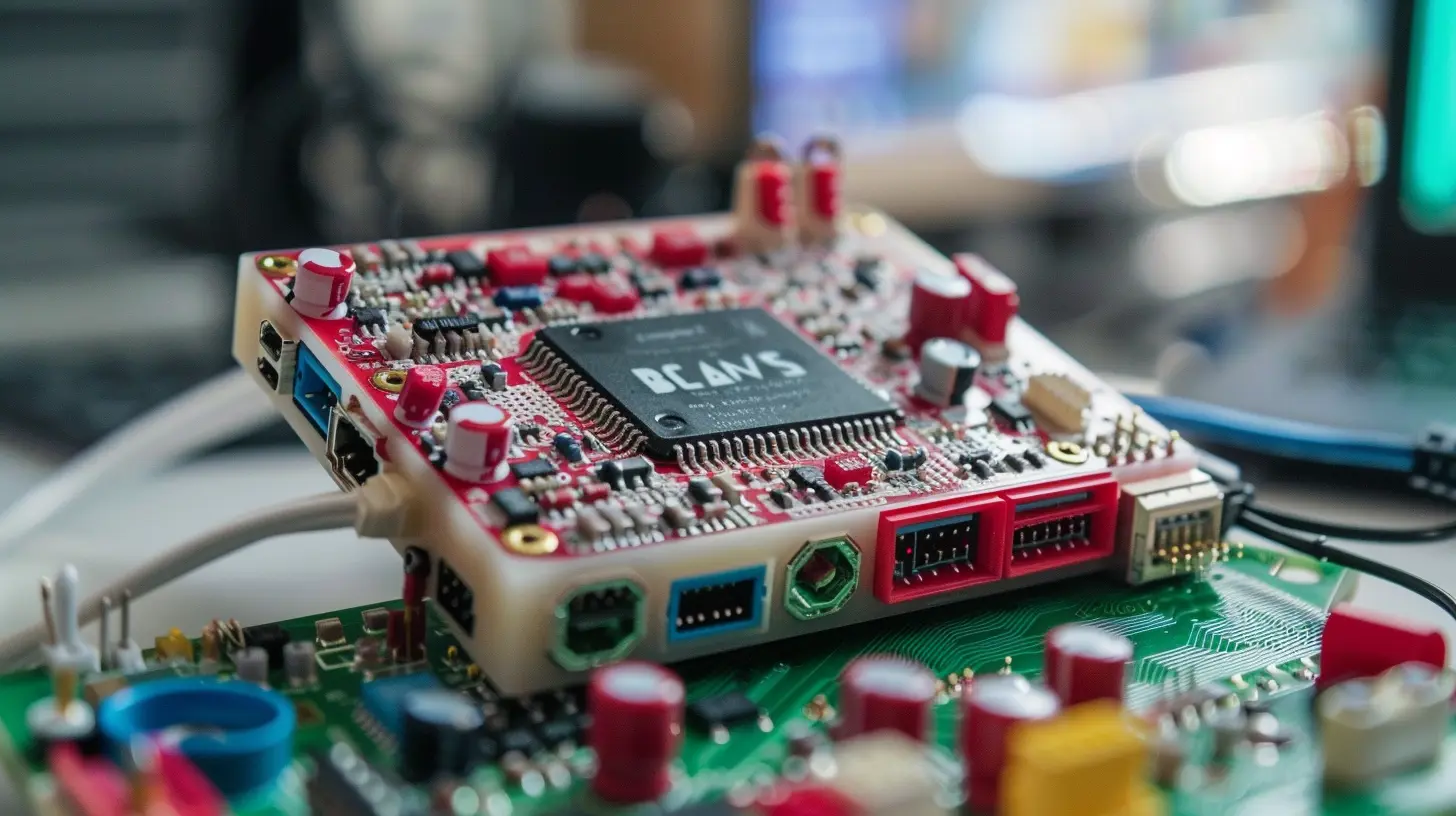
? Step 2: Assemble Your Console
This part’s kinda fun—like adult LEGO.Connect Everything:
- Slide your Raspberry Pi into its case.- Plug in the HDMI cable to your monitor or TV.
- Connect your controller to a USB port.
- Insert the microSD card.
- Power it up with the adapter.
Boom! If all went well, you’ll be greeted by EmulationStation’s interface. If you’re like me, you’ll probably get a little giddy right about now.
?️ Step 3: Set Up Your Controller
This is your first real interaction with the system, and it's surprisingly easy.- RetroPie will automatically detect a connected controller.
- Follow the on-screen prompts to configure it: Up, Down, Left, Right, A, B, Start, Select, etc.
- If you don’t have inputs for every button, just hold any button to skip those.
Now your controller is ready to party!
? Step 4: Load Up Some Games (ROMs)
Now we’re getting to the good stuff: the games.A Word on Legality
Before we go on, let’s keep it real—only download ROMs (game files) for titles you legally own. There are many free and open-source games that you can play guilt-free too.How to Add ROMs:
1. Via USB Stick:- Format your USB to FAT32.
- Create a folder named `retropie` on it.
- Plug it into the Raspberry Pi and wait a few seconds.
- Plug it back into your computer—you’ll now see system folders like “nes,” “snes,” etc.
- Drop your ROM files into the correct folders.
2. Using Wi-Fi:
- On RetroPie, go to the RetroPie settings menu.
- Set up Wi-Fi and find the Pi’s IP address.
- On your PC, type the IP into File Explorer like this: `\\192.168.x.x`
- Open the ROM folder and drag-and-drop games.
After adding your games, restart EmulationStation, and your new system(s) will show up!
? Optional: Save States and Cheats
One of the biggest flexes your new console has over old-school systems? Save states.Just press your hotkey + a button (like Start or Select) to save your game instantly. You can also load that save anytime—no passwords, no wait time.
RetroPie also supports cheat codes using RetroArch. You can load and enable cheats mid-game. Remember GameShark? It’s like that, but on steroids.
? Step 5: Customize the Look and Feel
You don’t have to stick with the default theme. You're the boss now.Change the Theme:
- Go to the “UI Settings” in EmulationStation.- Choose from cool built-in themes, or download new ones through the setup script.
You can have a minimal black-and-white look, or go full 90s arcade vibes. Your call.
Add Box Art:
RetroPie can scrape game info and cover art for you:- In EmulationStation, go to the “Scraper” settings.
- Connect to Wi-Fi and let it pull in artwork, descriptions, and even ratings.
Suddenly, your console looks almost… professional?
? Want to Get Fancy? Try Overclocking
If you’re feeling brave and want better performance on some PS1 games, you can even overclock the Raspberry Pi.⚠️ Warning: This can shorten the lifespan of your hardware and void any warranty.
But if you’re into it:
- Go to “raspi-config” from the terminal.
- Navigate to the overclocking section.
- Bump up the clock speed cautiously.
Just make sure your Pi stays cool—literally.
? Troubleshooting Tips (Because Stuff Happens)
Let’s face it—even the smoothest setups can hit a snag. Here are a few common hiccups and how to fix them:- Controller not detected? Try switching USB ports and rebooting.
- Laggy performance? Lower video settings or opt for a lighter emulator.
- Black screen? Check power supply and HDMI connection.
- No ROMs showing up? Make sure they are in the correct system folder.
Still stuck? The RetroPie forums and Reddit are full of helpful folks who’ve been in your shoes.
? Final Thoughts: You Just Built a Freakin’ Console!
Let that sink in for a second. You took a tiny circuit board, added a few parts, dragged some files over—and now you’ve got a fully functional, totally nostalgic, actually really fun gaming console.More than that, you’ve learned a new skill, saved some cash, and created something uniquely yours. There’s pride in that. Whether you keep tweaking it, gift it to a friend, or just binge on Mario Kart for the next week, the journey is totally worth it.
So, what’s next? Maybe you build a handheld version (yep, that’s possible). Or maybe you dive deeper into Raspberry Pi for other cool projects. Either way, the tech world just opened up a little wider—and you’ve already crossed the threshold.
Game on, builder.
all images in this post were generated using AI tools
Category:
Tech TutorialsAuthor:

Vincent Hubbard
Discussion
rate this article
2 comments
Soraya Walker
This article is a fantastic guide for anyone wanting to build a gaming console with Raspberry Pi. Clear steps and helpful tips make the process enjoyable and achievable.
July 12, 2026 at 3:25 AM
Fennec McKinney
Great read! I appreciate the step-by-step approach to building a gaming console with Raspberry Pi. Your insights into hardware and software setup really simplify the process for beginners looking to dive into retro gaming.
June 4, 2026 at 1:01 PM
Vincent Hubbard
Thanks for your kind words! I'm glad you found the guide helpful for getting started with retro gaming. Enjoy building your console!