How to Set Up Dual Monitors for Better Productivity
28 June 2026
In today's fast-paced digital world, multitasking is the name of the game. If you’ve ever found yourself constantly switching between tabs or struggling with limited screen space, setting up dual monitors might be the productivity boost you need. Having an extra screen is like giving yourself a bigger desk—more room to work, less clutter, and greater efficiency.
But how do you set up dual monitors the right way? Don't worry! In this guide, we'll walk you through everything from choosing the right monitors to tweaking settings for maximum productivity.
Why Use Dual Monitors?
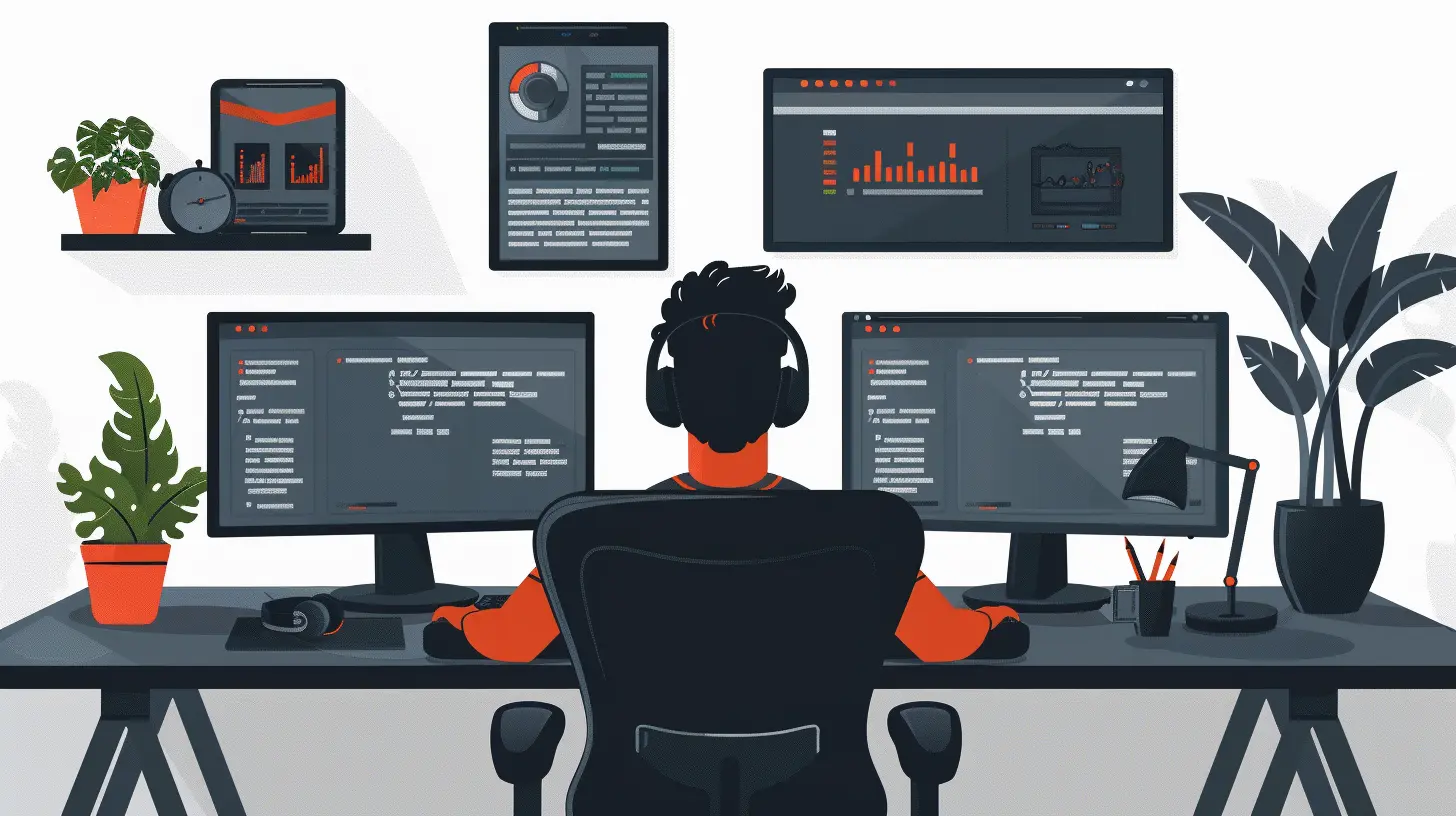
Before we dive into the setup, let's talk about why you should consider a dual monitor setup. Here are a few compelling reasons:- Increased Productivity: Studies show that using two monitors can boost work efficiency by up to 42%. You can have multiple windows open without constantly switching tabs.
- Better Multitasking: Whether you're coding, designing, writing, or gaming, dual screens allow you to manage tasks more comfortably.
- Improved Workflow: Keep your reference materials, chat windows, or email open on one screen while working on the other. No more flipping back and forth!
- Enhanced Entertainment: Gamers and streamers can benefit from having a dedicated screen for gameplay while monitoring chats or stats on the other.
What You Need for a Dual Monitor Setup
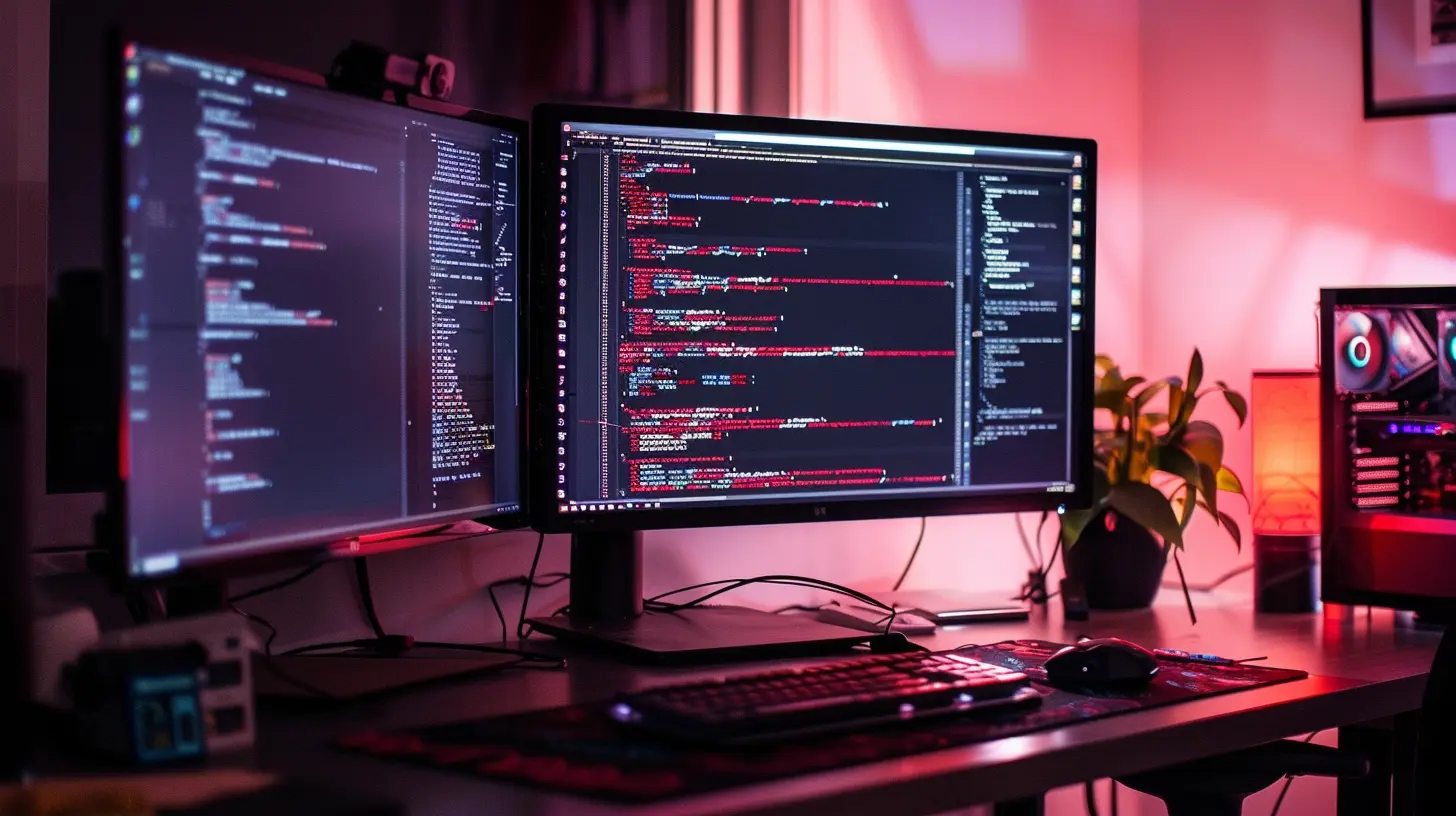
Before setting up, make sure you have the following:1. Two Monitors
Obviously, you’ll need two screens! They don’t have to be identical, but having the same resolution and refresh rate can create a smoother experience.2. A Compatible Computer
Not all computers support multiple displays, so check your device for multiple video output ports. Common ports include:- HDMI
- DisplayPort
- DVI
- USB-C/Thunderbolt (For newer setups)
3. The Right Cables
Using the right cables ensures that your displays work seamlessly. If your monitors and computer have different ports, you may need adapters like an HDMI-to-DisplayPort converter.4. A Monitor Stand (Optional)
If you want a clean and ergonomic setup, consider using a dual monitor stand or a mount to free up desk space.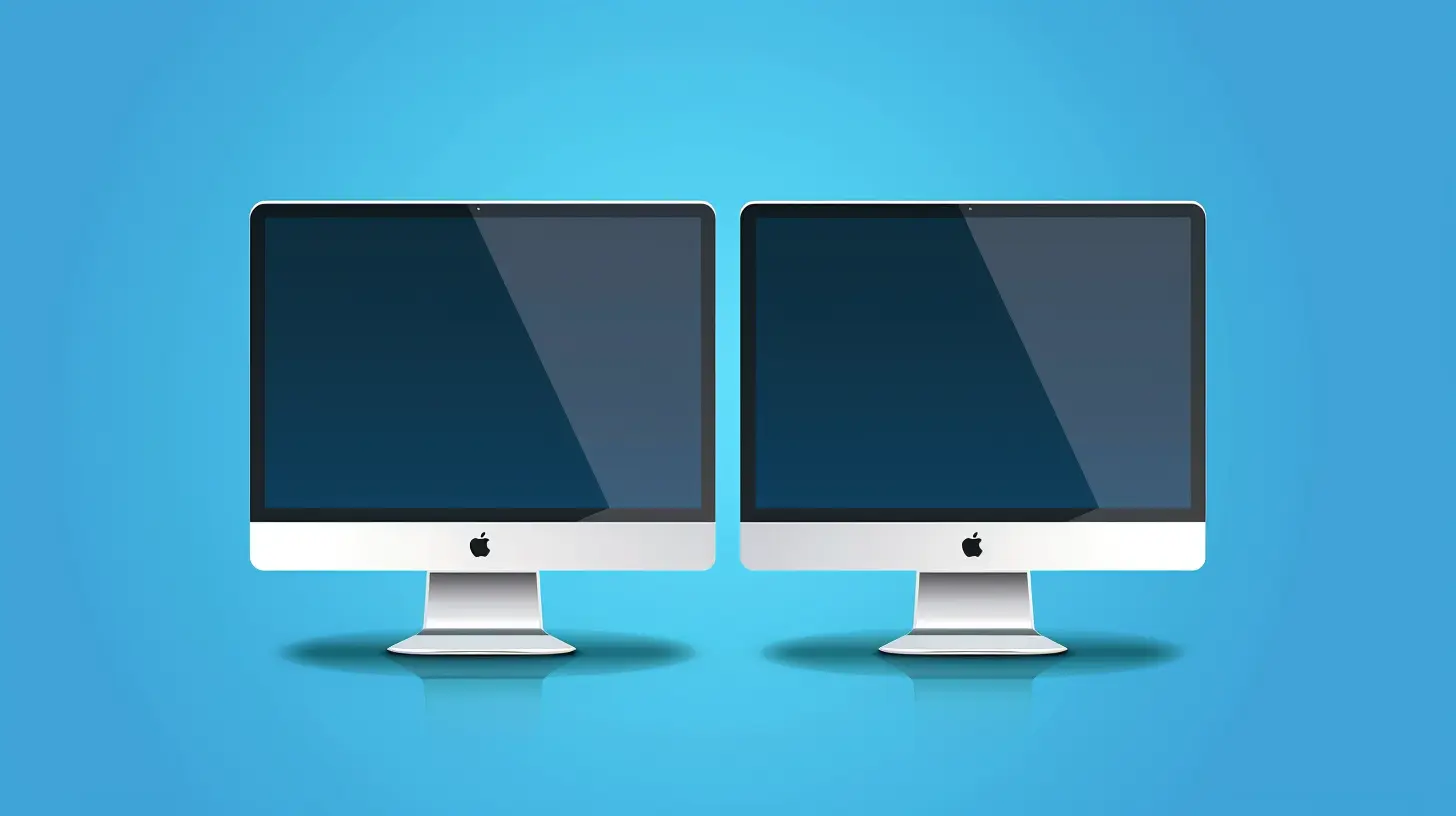
Step-by-Step Guide to Setting Up Dual Monitors
Now that you have everything ready, let's put it all together!Step 1: Connect the Monitors
1. Turn off your computer.2. Plug in both monitors using the appropriate cables.
3. Turn on your computer and both monitors.
Step 2: Adjust Display Settings
Once your system detects the second monitor, you’ll need to adjust its settings. Here's how:On Windows:
1. Right-click on your desktop and select Display settings.2. Scroll down to the Multiple displays section.
3. Click Detect if your second monitor isn’t showing up.
4. Under Display mode, choose one of the following:
- Extend these displays (Recommended for multitasking)
- Duplicate these displays (Mirrors the main screen)
- Show only on 1 or 2 (Disables the other monitor)
5. Adjust the monitor arrangement by dragging the screen icons to match your physical setup.
6. Click Apply, and you’re good to go!
On macOS:
1. Click the Apple menu and go to System Settings > Displays.2. Click Arrangement and drag the monitors to match your setup.
3. Uncheck Mirror Displays (unless you want the same screen on both).
4. Close the window to save changes.
Step 3: Set the Primary Monitor
If you prefer one monitor as your main display:- On Windows: In Display settings, select your primary monitor and check Make this my main display.
- On macOS: Drag the white menu bar to your preferred monitor under Displays.
Step 4: Adjust Resolution and Scaling
To ensure both screens look crisp and clear, adjust the resolution:- Go to Display settings (Windows) or Display preferences (Mac).
- Choose the recommended resolution for each monitor.
- Adjust scaling if the text/icons appear too small or large.
Step 5: Fine-Tune Positioning for Ergonomics
Your setup should be comfortable for long hours of work. Follow these ergonomic tips:- Place monitors at eye level to reduce neck strain.
- Keep the screens at an arm’s length away.
- If using one monitor more frequently, position it centrally.
- Angle the second monitor slightly towards you for a natural viewing experience.
Tips for Maximizing Productivity with Dual Monitors
Setting up dual monitors is just the beginning. Here’s how to make the most of your setup:1. Use Keyboard Shortcuts
Switching between screens doesn’t have to be a hassle. Try these shortcuts:- Windows + Shift + Left/Right Arrow: Move active windows between monitors.
- Windows + P: Toggle display modes quickly.
- Mac: Command + F1: Toggle mirroring on/off.
2. Organize Your Workspaces
- Keep communication tools (Slack, Zoom) on one monitor and work on the other.- Use one screen for reference material while working on the other.
- If you’re a gamer or streamer, dedicate one screen for gameplay and another for chat or monitoring.
3. Install Productivity Software
Certain apps can enhance your dual-screen experience:- DisplayFusion: Advanced window management for multi-monitor setups.
- PowerToys (Windows): Lets you create custom window layouts.
- Magnet (Mac): Easily snap windows into place.
4. Enable Taskbar on Both Screens (Windows)
If you frequently switch screens, having the taskbar on both monitors is helpful.- Go to Taskbar settings > Toggle Show taskbar on all displays.
5. Use Virtual Desktops (Windows & Mac)
If two monitors aren’t enough, virtual desktops can help:- Windows: Press Windows + Tab, then click New Desktop.
- Mac: Use Mission Control (F3 or swipe up on trackpad) to create multiple workspaces.
Common Issues and Fixes
1. Second Monitor Not Detected
- Check cable connections and ensure the monitor is powered on.- Try using a different port or adapter.
- Update your graphics driver via Device Manager (Windows) or Software Update (Mac).
2. Resolution Mismatch
- Manually set the correct resolution for each monitor in Display settings.- If needed, use third-party apps like Custom Resolution Utility (CRU).
3. Monitors Not Aligning Correctly
- Drag the displays into the correct position in Display settings.- Adjust height physically or use monitor risers for better alignment.
Final Thoughts
A dual monitor setup isn’t just a fun tech upgrade—it’s a game changer for productivity. Whether you're working, gaming, or multitasking, having that extra screen space makes everything smoother and more efficient.Take the time to set up your monitors properly and customize them to your needs. Once you get used to the workflow, you’ll wonder how you ever worked with just one screen!
all images in this post were generated using AI tools
Category:
Tech TutorialsAuthor:

Vincent Hubbard
Discussion
rate this article
1 comments
Sophia McVey
Great article! Setting up dual monitors can really transform the way we work. I love how you broke down the steps clearly. It makes the process feel approachable for anyone looking to boost their productivity. Thanks for sharing these tips-can't wait to set mine up!
July 4, 2026 at 3:46 AM